Updated for Divi 5: All three methods below still work in Divi 5. The one thing that trips people up: Divi loads jQuery at the bottom of the page, so jQuery code must be wrapped in jQuery(function($){ … }); (or loaded after jQuery), otherwise it runs too early and does nothing.
How to add custom JavaScript to Divi
There are three ways to add JavaScript or jQuery code to a Divi website: the Code module (for one page or one Theme Builder template), Divi Theme Options ➜ Integration (for every page), and your child theme, where you enqueue a script file in functions.php (the method recommended by WordPress).
Let's say you've found a JavaScript (or jQuery, which is the "Write Less, Do More" JavaScript library) code snippet and you'd like to include it in your Divi website. There are a few ways you can go about doing it. One of the options would be to use the Code module.
Option 1: Add JavaScript to one page with the Code module
Add a Code module to your page and paste your script, wrapped in <script> </script> tags. The script runs on the frontend of that page, in Divi 5 and Divi 4.
This is the code I used to test it:
<script>
jQuery(function($){
    alert('Hi! This is working!');
});
</script>
Using the Code module is a good option if you want your code to run only on one specific page. Two tips:
- Need it on many pages? Put the Code module in a Theme Builder template instead (Divi ➜ Theme Builder, for example in the global footer layout). The script then runs on every page that uses that template.
- Use the Code module, not the Text module. The Text module is made for text: it wraps your code in paragraph tags, and its visual editor can mess up or remove the script.
But if you want your code to run on every page, it would be better to add it to your website via Theme Options.
Option 2: Add JavaScript to every page with Divi Theme Options
Go to Divi ➜ Theme Options ➜ Integration, make sure Enable header code is enabled, and paste your code in the Add code to the < head > of your blog field. This tab is the same in Divi 5 and Divi 4.
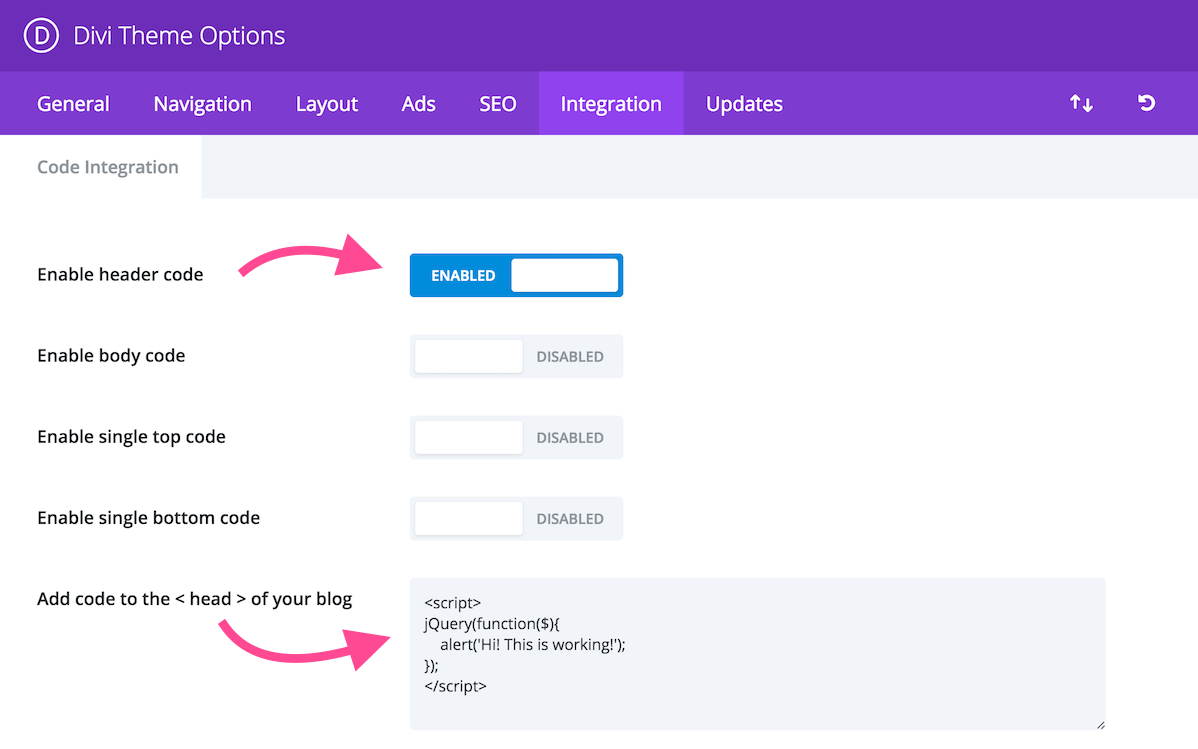
The same tab has a second field, Add code to the < body > (turn on Enable body code to use it). Divi prints that code at the very end of the page, right before the closing </body> tag, which is a good place for scripts that work with the page content.
To get your site to load an external JS file (e.g. your own code or a jQuery plugin) add a line like this, with your own file URL:
<script src="https://yoursite.com/wp-content/themes/yourchildtheme/js/my-scripts.js" defer></script>The defer attribute matters if the file uses jQuery: it tells the browser to run the file after the whole page (and jQuery) has loaded. Without it, a jQuery plugin added to the head runs before jQuery exists and fails (I tested both versions in Divi 5).
The last method is a bit more advanced, but it is the approach recommended by WordPress.
Option 3: Enqueue a script file in your child theme's functions.php
Upload your JavaScript file to your child theme and load it with wp_enqueue_script() in the child theme's functions.php. WordPress then adds it to every page, in the right order, and you keep your code in a real file.
With this example I'm assuming you are using a Divi child theme and you uploaded your scripts file to a "js" folder inside your child theme files. You can add the code below to your functions.php file:
function mycustomscript_enqueue() {
    wp_enqueue_script(
        'custom-scripts',
        get_stylesheet_directory_uri() . '/js/my-scripts.js',
        array(),
        filemtime( get_stylesheet_directory() . '/js/my-scripts.js' ),
        true
    );
}
add_action( 'wp_enqueue_scripts', 'mycustomscript_enqueue' );
The last two values are new compared to the original version of this post: filemtime() adds the file's last-modified time as the version number, so visitors get the new file as soon as you change it (no old cached copy), and true loads the script at the bottom of the page.
If your script relies on the jQuery library, add array( 'jquery' ) as the dependency, to make sure jQuery will be loaded first:
function mycustomscript_enqueue() {
    wp_enqueue_script(
        'custom-scripts',
        get_stylesheet_directory_uri() . '/js/my-scripts.js',
        array( 'jquery' ),
        filemtime( get_stylesheet_directory() . '/js/my-scripts.js' ),
        true
    );
}
add_action( 'wp_enqueue_scripts', 'mycustomscript_enqueue' );
Just don't forget to change this code to match your file name. Inside my-scripts.js, wrap your jQuery code like this (no <script> tags in a .js file):
jQuery(function($){
    // your code here, you can use $ inside
    $('body').addClass('my-class');
});
Why your jQuery code does not work in Divi (and how to fix it)
Most often because the code runs before jQuery is loaded. Divi loads jQuery at the bottom of the page to make it faster (the Defer jQuery And jQuery Migrate option in Divi ➜ Theme Options ➜ General ➜ Performance, on by default; it keeps jQuery at the top only when it detects that a plugin or your page code needs it there), so a jQuery call that runs earlier fails.
Divi has a safety net for this: it adds a tiny placeholder at the top of the page that collects code wrapped in a "document ready" function and runs it once the real jQuery has loaded. I tested these in a Divi 5 Code module:
jQuery(function($){ … });worksjQuery(document).ready(function($){ … });worksjQuery('body').addClass('my-class');(not wrapped) does not work: it runs before jQuery exists- an external jQuery plugin file in a plain
<script src="…">tag does not work, the same file withdeferworks
So, to fix jQuery code that does nothing (check the browser console for errors like "is not a function"):
- Wrap your code in
jQuery(function($){ … });. It also lets you use$inside, which WordPress doesn't allow globally (it loads jQuery in "no conflict" mode). - Add
deferto external script tags that need jQuery. - Load script files the WordPress way (Option 3), with
array( 'jquery' )as the dependency. - Last resort: turn off Defer jQuery And jQuery Migrate in Divi ➜ Theme Options ➜ General ➜ Performance. jQuery then loads in the head again, but your pages load a bit slower.
Do you still need jQuery for small tricks in Divi 5?
Often not. Divi 5 has Interactions (Advanced ➜ Interactions in the element settings): a click, mouse enter or leave, page load, or an element scrolling into or out of view can show, hide or toggle another element, change an attribute or a preset, set a cookie or scroll to an element, with no code at all.
So before you paste a jQuery snippet that opens a popup or shows a hidden section on click, check if an Interaction can do it. If you need your own code, plain JavaScript works too and doesn't depend on jQuery at all:
<script>
document.addEventListener('DOMContentLoaded', function () {
    document.body.classList.add('my-class');
});
</script>
And that's it, you've successfully loaded custom JavaScript to your Divi website 🙂 If you're new to adding code to Divi, my beginner's guide to custom CSS in Divi shows where all the CSS fields are. Questions? Share them in my Divi Lovers Facebook group.