Updated for Divi 5: a functionality plugin works the same with Divi 5. The one update: load scripts that use jQuery in the footer, so Divi 5 can keep jQuery deferred. The code below and the free sample plugin are updated to do that.
What is a WordPress functionality plugin?
A functionality plugin is a small plugin you make for your own website: it holds your custom PHP code snippets (the ones tutorials tell you to add to functions.php), so they keep working when you update or change your theme.
A functionality plugin is a plugin like any other plugin you can find in the WordPress repository. The one difference is that it wouldn't be available for public distribution, because it is specific to your site. The plugin wouldn't have any settings page in the dashboard, it would just hold your own custom code.
When working on your website, you'll often find tutorials asking you to add certain code to your theme's functions.php file, and the functionality plugin is where you can place your PHP code snippets that would normally go into the functions.php file.
Why use a site-specific plugin?
Because your code stays safe: it doesn't depend on your theme, it isn't overwritten by theme updates, and it works with premium child themes whose files you shouldn't edit.
The first reason is simple: if you change themes, you lose all of the functionality with it. A functionality plugin will allow you to change your website's theme without losing all of your tweaks and customizations.
And for Divi Theme users there is a second reason: premium child themes. You need to use a child theme if you want to add PHP code to the functions.php file: you should never edit that file directly inside the Divi theme folder, because your changes would be removed with the Divi update. So if you are using a simple child theme then you can keep your code in your functions.php file (here's my beginner guide to Divi child themes). But some premium child themes (including my own Milly and Identity) come with their own automatic updates. That means that you shouldn't edit the child theme files. You should keep your custom CSS in Divi ➜ Theme Options ➜ General ➜ Custom CSS, and you can create a simple plugin to include any additional functionalities that require PHP.
A third reason might not be very important, but if you're making websites for clients, building a custom plugin with their company name will surely make you look like a pro! I've had many clients complimenting my work and getting excited by having their own plugin, so there's that...
The video was recorded in 2020, and the steps are still the same. The only update is in the code that loads JavaScript (see "Load the CSS and JavaScript files" below).
How to make a WordPress plugin?
You need one folder in /wp-content/plugins with one PHP file inside, and that file needs a plugin header with at least a plugin name. That's enough for WordPress to list it on the Plugins page.
If you haven't created a WordPress plugin before, don't worry. If you've made changes to your functions.php, then you can handle building a plugin and it is a great way to gain some experience.
Step 1: Create the plugin folder
Create a new directory inside the /wp-content/plugins folder on your server. You can name the directory whatever you like, but avoid using special characters and numbers (dashes and underscores are fine). I'd suggest going with something like mywebsite-functionality.
Note: If you'd like to work locally, you can create the plugin files on your computer and once you're done, ZIP the folder into a file and upload it like any other plugin (Plugins ➜ Add New Plugin ➜ Upload Plugin).
Step 2: Create the plugin file
Next, create a new file inside the directory, a PHP file with a similar name as the folder: something like mywebsite-functionality.php will do the trick.
Step 3: Include the plugin header
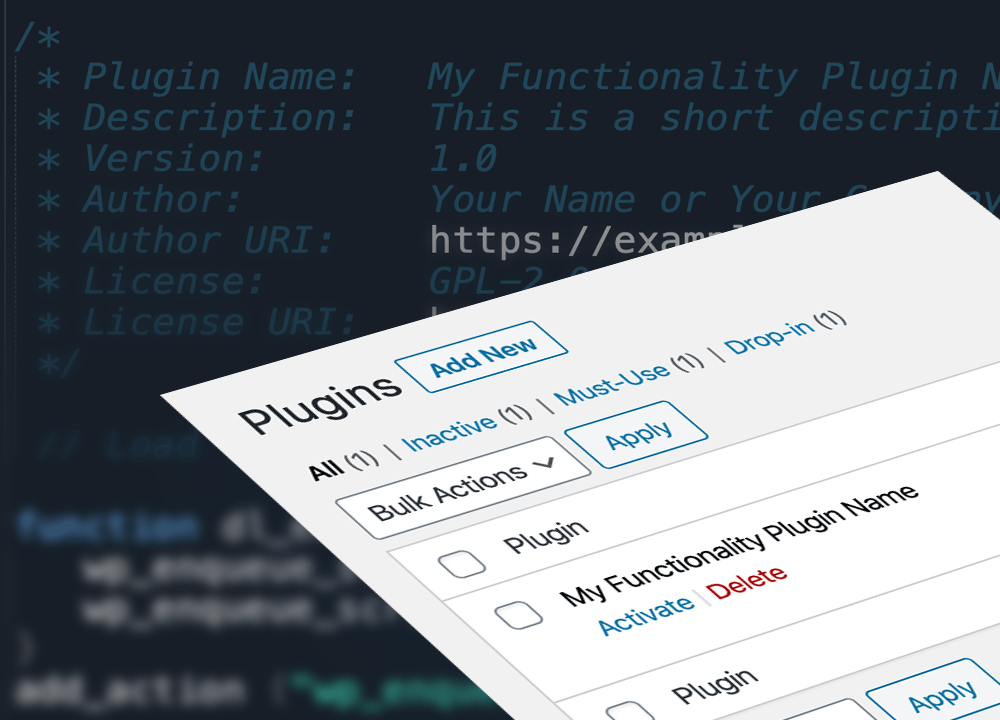
Your plugin file needs specific header code so that WordPress will recognize it as a plugin. Here's an example to get you started.
<?php

/*
 * Plugin Name:	My Functionality Plugin Name
 * Description:	This is a short description of what the plugin does. It's displayed in the WordPress admin area.
 * Version:		1.0
 * Author:		Your Name or Your Company
 * Author URI:	https://example.com/
 * License:		GPL-2.0+
 * License URI:	http://www.gnu.org/licenses/gpl-2.0.txt
 */
You don't need to include all these elements, the plugin name is the only required part for this to work.
Step 4: Activate your plugin
Once you save the file, your new plugin will appear in the WordPress dashboard (Plugins ➜ Installed Plugins) and you should be able to activate it:
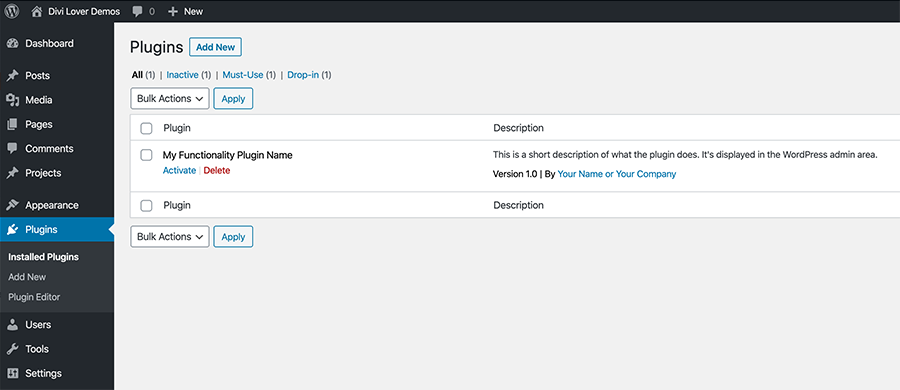
Right now the plugin doesn't do anything, but once you start including your code snippets, your code will work the same as it would be placed inside the functions.php file.
Adding HTML, CSS and JS to the plugin
Add PHP functions to the main plugin file, put your CSS and JavaScript in their own files (for example in an assets folder), and load them with wp_enqueue_style and wp_enqueue_script.
Add a function
Let's add some simple functions to see if our plugin works:
// CTA Fixed Button
function dl_fixed_button() {
	?>
	<a href="#" class="dl_fixed_button">Click Me!</a>
	<?php
}
add_action( 'wp_footer', 'dl_fixed_button' );
This code adds a link with a CSS class of dl_fixed_button to the footer of your website. Now, let's add some CSS to style the link:
.dl_fixed_button {
	display:inline-block;
	background:#fc63f7;
	color:#fff;
	padding:10px 15px;
	font-size:12px;
	font-weight:bold;
	position:fixed;
	z-index:99;
	bottom:10px;
	left:10px;
	text-decoration: none;
}
I'm creating a new "assets" folder inside my main plugin directory and I'm saving this CSS code in a new file called style.css, so the path to my file is mywebsite-functionality/assets/style.css
Load the CSS and JavaScript files
Now, to load this CSS we need an enqueue function in our main PHP file:
// Load the CSS
function dl_enqueue_assets() {
	wp_enqueue_style( 'functionality-styles', plugin_dir_url( __FILE__ ) . 'assets/style.css', array(), '1.0' );
}
add_action( 'wp_enqueue_scripts', 'dl_enqueue_assets' );
If you'd like to include JavaScript code you can use the same function to load a file called scripts.js:
// Load the CSS and JS
function dl_enqueue_assets() {
	wp_enqueue_style( 'functionality-styles', plugin_dir_url( __FILE__ ) . 'assets/style.css', array(), '1.0' );
	wp_enqueue_script( 'functionality-scripts', plugin_dir_url( __FILE__ ) . 'assets/scripts.js', array( 'jquery' ), '1.0', true );
}
add_action( 'wp_enqueue_scripts', 'dl_enqueue_assets' );
The last true loads the script in the footer. That matters in Divi 5: Divi defers jQuery to the footer by default, and a script that needs jQuery but loads in the head pulls jQuery back into the head (it still works, the page just loads a bit slower). The '1.0' is a version number: change it when you edit the file, so browsers load the new version.
For a quick test, the sample plugin's scripts.js shows an alert when you click the button:
jQuery(function($) {
	$('.dl_fixed_button').click(function(){
		alert('It works!');
	});
});
Wrapping your code in jQuery(function($) { … }); makes it run when the page is ready. More about jQuery in Divi 5 in how to add JavaScript and jQuery code to Divi.
Split your code into files
We can also structure our functionalities better and move the code snippet which adds a button to a separate file called cta-fixed-button.php and load this file using the "include" function in our main plugin file, like this:
include plugin_dir_path( __FILE__ ) . 'cta-fixed-button.php';plugin_dir_path( __FILE__ ) gives the full path to your plugin folder, so PHP always finds the file. And the cta-fixed-button.php file would look like this:
<?php

// CTA Fixed Button
function dl_fixed_button() {
	?>
	<a href="#" class="dl_fixed_button">Click Me!</a>
	<?php
}
add_action( 'wp_footer', 'dl_fixed_button' );
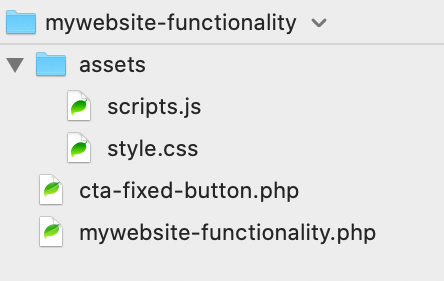
Here's how the sample plugin structure looks now:
Grab the free sample plugin!
The sample plugin has all the files from this tutorial: the main plugin file, cta-fixed-button.php, and assets/style.css and assets/scripts.js.
I compressed these sample files in a ZIP file, which Divi Lover subscribers can download below. Simply install and tweak the code to your needs or unzip the file and use it as a starting point for creating your own functionality plugin!
Free download
Sample Functionality Plugin
A sample WordPress functionality plugin (plugin header, a CSS and a jQuery file loaded the right way, and code split into files) to start your own; install it in Plugins → Add New Plugin → Upload Plugin. Works in Divi 5 and Divi 4.
Get the free downloadBuilt something with it? Share it in my Divi Lovers Facebook group.