Updated for Divi 5: Global Defaults don't exist anymore: Divi 4.5 replaced them with presets, and Divi 5 builds on that with module presets, option group presets and design variables. This guide now shows how to style every module globally in Divi 5, and the free layout pack was fixed and tested in Divi 5.
What happened to Divi Global Defaults?
Divi Global Defaults were replaced by Global Presets in Divi 4.5 (2020): your global default styles became each module's Default Preset, and Divi 5 still uses presets for the same job.
The idea hasn't changed since I first wrote this guide: instead of starting with Divi's default styles and customizing each module individually, you create global styles for every module inside the Divi Builder. Every new Button, Blurb or Toggle you add already looks like your brand, and when you change the style, it changes everywhere.
Here's the video I recorded back then. It shows the old Global Defaults interface, so the buttons look different now, but the way of thinking is exactly the same: style a module once, apply it globally, and decide what should happen to the modules you already have.
The video was recorded in Divi 3 with Global Defaults. In Divi 5 you do the same thing with presets: the steps are below.
How to style every module globally in Divi 5
Style one module, save its styles as a preset, and mark that preset as the Default Preset: every module of that type on your website then uses it, including the ones you add later.
Step 1: Set up your design variables first
Open the Variable Manager and add your brand colors, fonts and the sizes you use most (spacing, radius, font sizes). When your presets use variables instead of fixed values, changing a color or a font later is one edit. I show the whole setup in my Divi design system guide.
Step 2: Style a module and save it as a preset
- Add a module (for example a Button) and style it the way you want in the Design tab.
- At the top of the module settings, click the preset icon (Select A Preset).
- Click New Preset From Current Styles and give the preset a clear name, like "Button Primary".
Step 3: Make it the Default Preset
In the same preset list, click the star next to your preset (Assign Preset as Default). Every Button that uses the default preset now gets these styles, and so does every new Button you add. This is exactly what Global Defaults used to do.
Step 4: Edit the preset to restyle the whole website
Open the preset list again and edit the preset. When you save, Divi warns you that the change will affect all modules of that type across your entire site: that's the point. You can also open the Preset Manager from the builder menu to see and edit all your presets in one place.
Step 5: Use option group presets for shared styles
Divi 5 can also save a preset for a single option group, like Border, Box Shadow or a font. Look for the preset icon on the option group, then reuse that one style on any module that has the same options. A "Card Border" option group preset is perfect for blurbs, images and groups that should all share the same frame.
What happens to existing modules when you change a preset?
Every module that uses the preset updates automatically, but any setting you changed directly on a module overrides the preset for that module.
This was the most common question with Global Defaults, and the rule is the same with presets. So if one Button refuses to follow your new style, open it and look for settings that were changed on the module itself. Reset them, and the Button picks up the preset again.
My tip: style with presets first and keep module-level changes for real exceptions. Your website stays consistent, and a redesign takes minutes instead of days.
Free Divi layout pack: three sets of default module styles
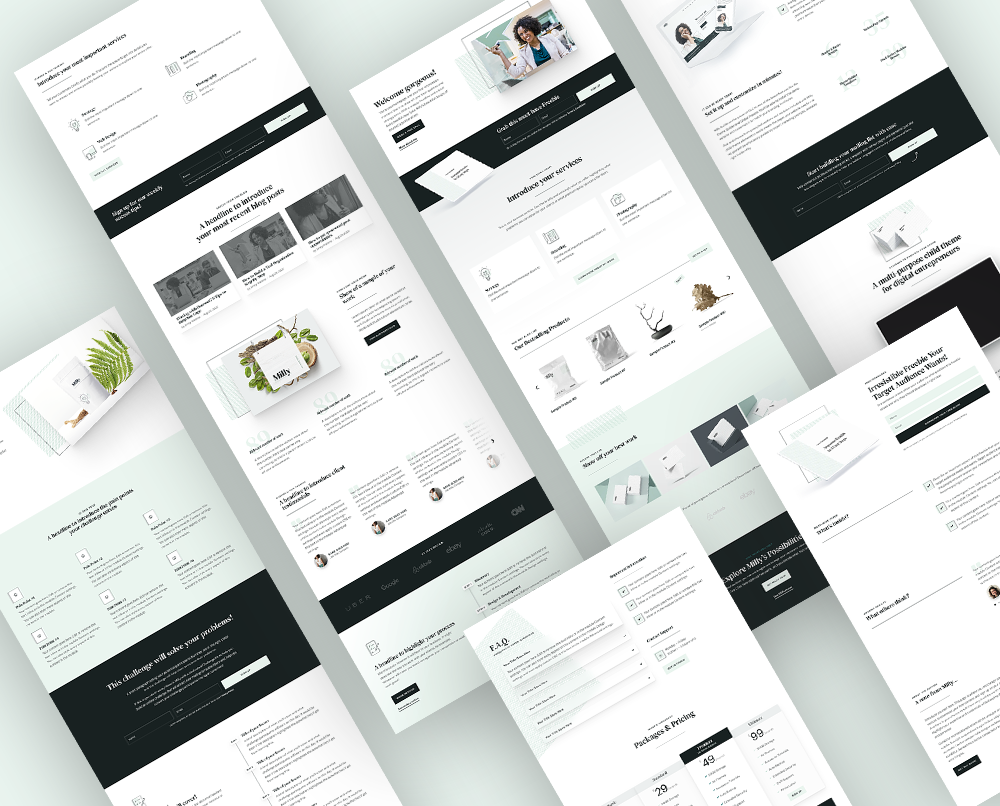
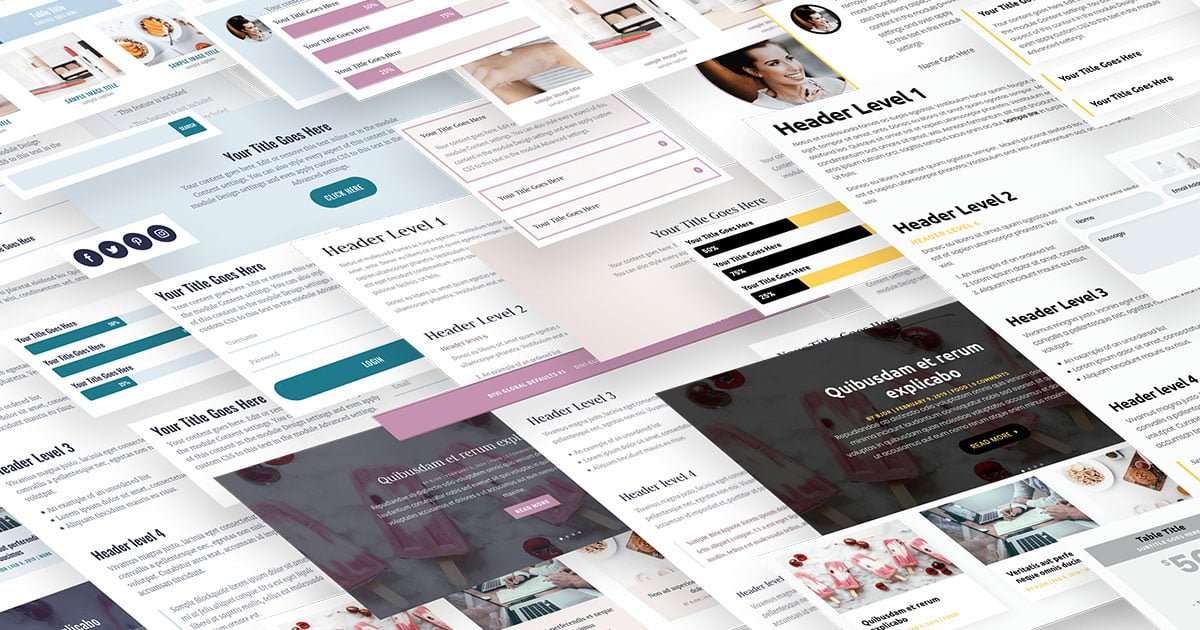
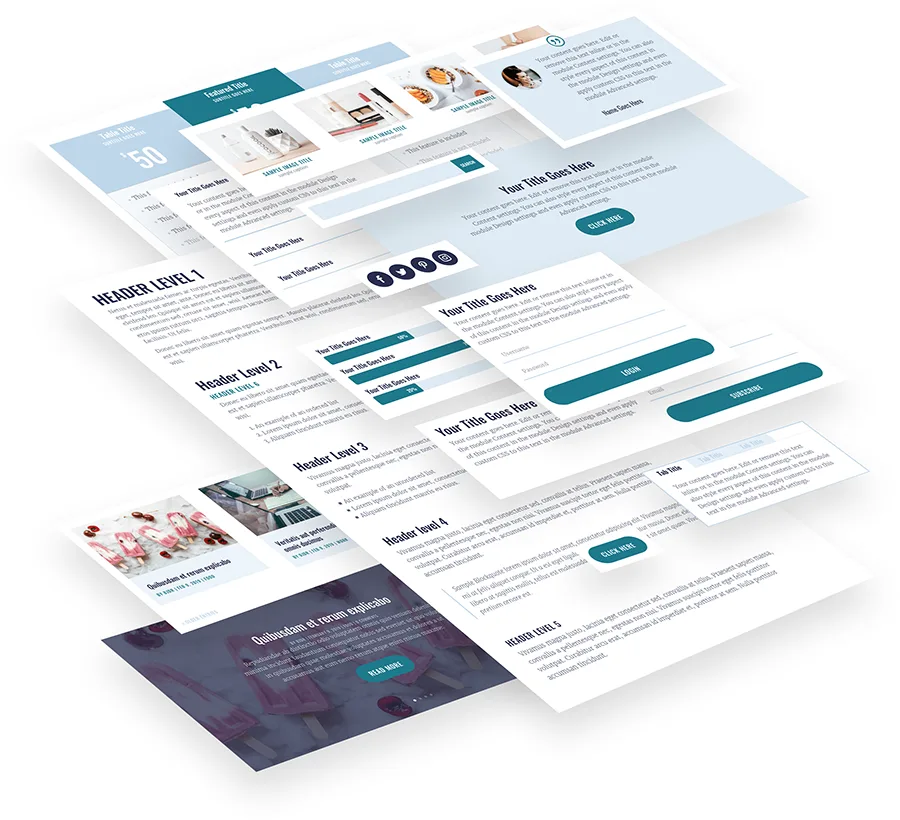
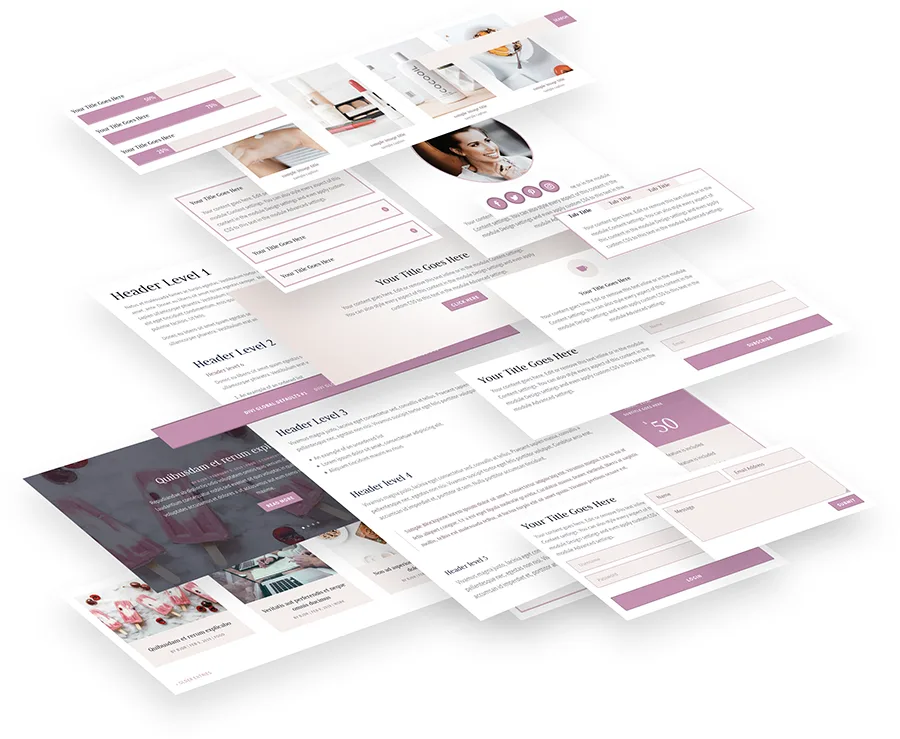
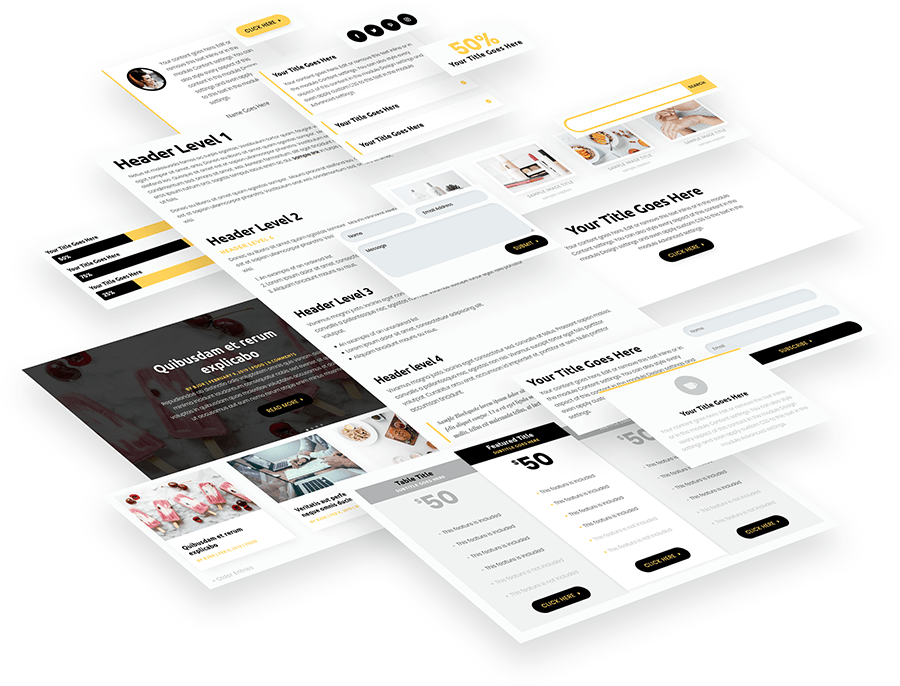
The free pack has three Divi page layouts, and each one shows almost every Divi module in a matching style, saved as presets you can import into your website.
I created this little "starter pack" in 2019 for Global Defaults. Each layout includes almost every Divi module in matching style and is optimized for mobile. I've now updated it: every set comes with its own presets (Set 2 and Set 3 used to carry the Set 1 styles by mistake), and all three were tested in Divi 5. Check out the demo pages and let me know what you think in my Divi Lovers Facebook group!
Free download
Divi Default Styles Presets Layout Pack
Three Divi page layouts showing almost every module in a matching style, with the styles saved as presets you can import as your website's defaults. Works in Divi 5 and Divi 4.
Get the free downloadGlobal Defaults Set #1
Global Defaults Set #2
Global Defaults Set #3
How to import the layouts and their presets
Import the JSON file on a page and tick Import Presets, so the styles come in as presets instead of static styles on that page only.
- Open a page with Divi, click the menu in the top-left corner of the builder and choose Import (in Divi 4: the Portability icon in the page settings bar).
- Choose one of the JSON files and tick Import Presets. Divi 5 converts the layout and its presets automatically.
- If you leave Import Presets unticked, Divi brings the styles in as static styles on this page only.
On a fresh website, the imported presets become the Default Presets for those modules, so every new module matches the set. If your website already has default presets, Divi keeps yours and adds the imported ones as extra presets, so try the pack on a test site first, or make an imported preset the default yourself with the star icon.