Updated for Divi 5: In Divi 5, your child theme doesn't need any code to load the stylesheets: Divi loads its own styles and your child theme's style.css automatically. The functions.php file and the free blank child theme below are updated to match, and they work in Divi 4 too.
The idea of child themes might be confusing to Divi and WordPress newbies. That is why we've decided to give you this concise, introductory explanation, available as a video and an article. First of all, rest assured, no children are involved! Secondly, while you might often hear about Divi child themes, this is actually a WordPress concept. If you'd like to quickly learn what child themes are and whether you need one, give this short video a watch.
It will explain the absolute basics, and the article will also cover them, while also including information on how to create a child theme, and a free blank child theme to download!
The video was recorded in 2022 with Divi 4. The ideas are the same in Divi 5, but creating a child theme got simpler: see the updated functions.php file below.
What is a Divi child theme?
A Divi child theme is a WordPress theme that depends on the Divi theme (its parent): it loads everything from Divi and adds its own styling, code or designs on top. It can't work on its own, so you always need Divi installed too.
Any WordPress theme can have a child theme, but we'll be focusing on Divi. A child theme is a theme that contains styling and functionality to make a website look and behave a certain way.
It's called a child theme because it is dependent on the parent theme, in this case, the Divi Theme. This means that a child theme on its own will not function. If you'd like to buy a premium child theme, for example, you will always have to have the Divi Theme, too.
There are two types of child themes: blank child themes and premium Divi child themes, and their properties and uses are different.
What is a blank Divi child theme?
A blank child theme is an empty child theme: your site looks and works exactly like Divi, but you get a safe place for your own code that Divi updates won't overwrite.
Why create it at all, then?
If you are using a WordPress theme such as Divi, you will have to update it from time to time to keep it functional and secure. Updating a theme means replacing all the theme files with the new, updated versions. Normally, this will not break or delete anything.
Unless you've inserted your own PHP, CSS or JavaScript code directly into the theme files. If you did that and then updated the theme, all the files with your edits would be deleted and replaced with the new files.
To prevent this, you can use a child theme. While keeping the parent theme files intact, you can insert your custom code into the child theme files, and this will prevent it from being overwritten.
Do you need a blank child theme?
If you aren't planning to edit the original theme files in any way, you probably do not need a blank child theme. Even if you're adding some custom CSS in Divi, you will not need a child theme if you're using the designated custom code spaces. These will not be affected by a Divi Theme update:
- Divi ➜ Theme Options ➜ General ➜ Custom CSS for CSS used across the whole site,
- a Code module on a page or in a Theme Builder template,
- the Advanced tab ➜ CSS of a module, row or section (Divi 4: Advanced tab ➜ Custom CSS),
- the page's own CSS: gear icon (top left) ➜ Page Settings ➜ Advanced ➜ Custom CSS.
If you're new to CSS in Divi, my beginner guide to custom CSS in Divi shows all of these places step by step.
But that applies only if you use CSS sparingly, and can easily keep track of where your code is located to easily find and edit it. If you write a lot of custom code for your websites (like we do!) a blank child theme is a convenient way to keep all your CSS in one place, and update it directly through FTP.
So, again: if you need to edit the original theme files in any way or write a lot of custom code, you will need a blank child theme. We've included a free one to download in this article!
With that covered, let's go on to premium child themes.
What is a premium Divi child theme?
A premium Divi child theme is a fully designed website you install on top of Divi: ready-made pages, Theme Builder templates and styles, all in one consistent design that you customize with the Divi Builder.
Like the blank child theme, a premium one is also a theme dependent on the Divi Theme. But it is not blank. A premium child theme is a fully functional theme with premium design and styling. It is actually a fully designed website, customizable using the Divi functionality.
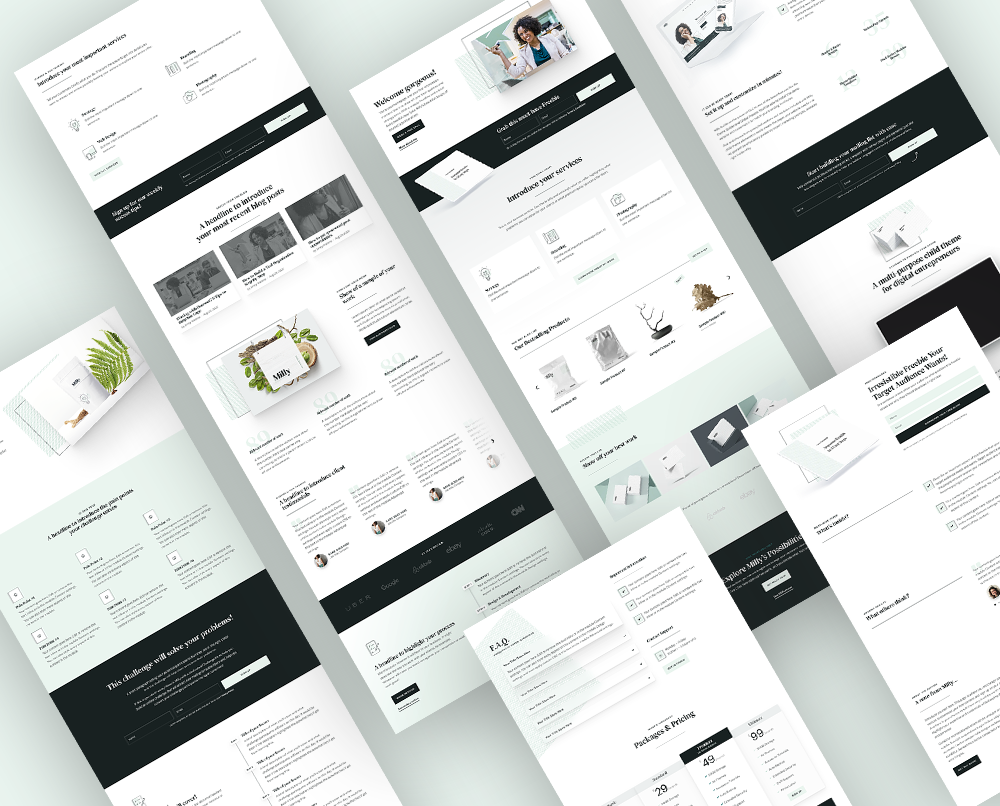
As an example: my Divi 5 child themes, Milly and Identity, contain a variety of different pages, such as the homepage, the about me page, blog archives and single blog posts, and more, all designed in a consistent, matching way.
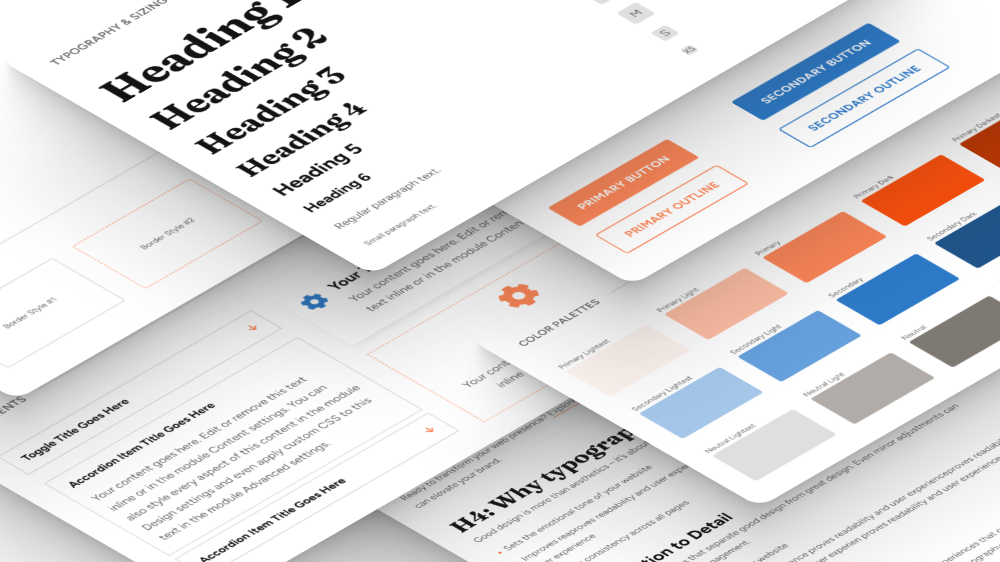
They also include a wide variety of sections in the Divi Library, which you can pick and choose to customize the design. All sections are kept in the same, consistent style, and they use Divi's global colors and fonts, which means you can add a section from the Library, and all the styling will already be implemented.
Do you need a premium child theme?
It depends. Casual WordPress users who just want to set up a website for themselves might find this a bit pricey because if you want to use a Divi child theme, you must purchase the Divi Theme as well.
But if you do have Divi, all you have to pay for is the child theme, and it's usually a huge time-saver and a guarantee of exquisite design.
Also, many choose this option because of the freedom and independence a child theme gives them. So if you're planning to build a website for yourself, and you appreciate great design and want to be able to customize your website using the powerful capabilities of Divi, purchasing a premium child theme is worth considering.
Another group of Divi child theme users are professional web designers who use them to save time on projects for their clients. Using a child theme as a basis for designing a website makes the process much faster and easier.
Not sure which one to pick? Read how to choose a Divi child theme.
Layout packs and Starter Sites: free alternatives to a premium child theme
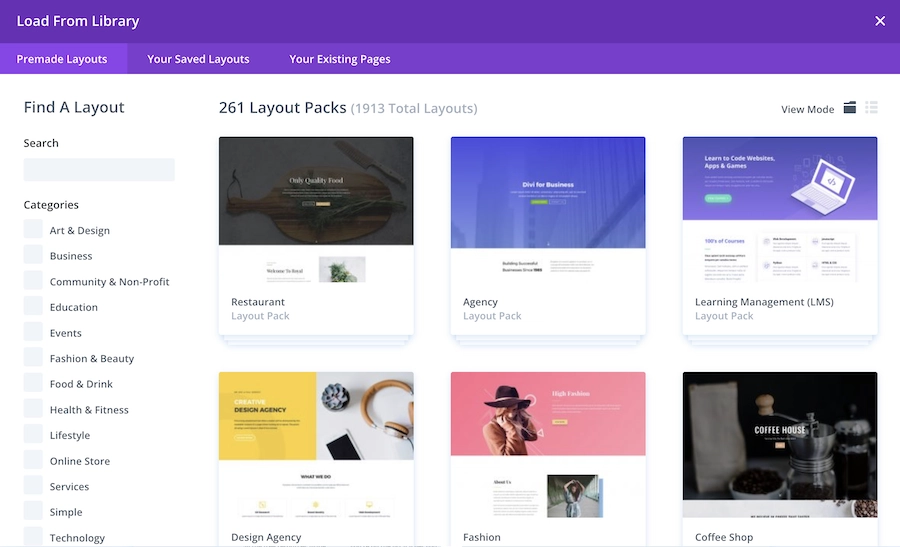
Another way to kickstart a website if you have Divi is using a layout pack. Elegant Themes offer hundreds of different layout packs for free, which every Divi member can load directly into the Divi Builder (in Divi 5: Insert Layout ➜ Premade Layouts; in Divi 4: Load From Library ➜ Premade Layouts).
Divi also has Divi Quick Sites (Divi ➜ Dashboard): pick a premade Starter Site, and Divi sets up the pages, the menu, the Theme Builder templates, styles and presets for you.
If you only need a simple, functional website with a few pages, this is a great option.
Layouts are not child themes, though. If you're using a layout pack, you import each page separately, and how easy it is to restyle everything at once depends on whether the layouts use global colors, fonts and presets. (More on this in the difference between a premium Divi child theme and a layout kit.)
Premium child themes will have a lot of global customization options, as well as more advanced features such as great popups, cool navigation design, and more.
How to create a Divi child theme?
To create a Divi child theme, make a folder with a style.css file whose header says Template: Divi, add an (almost empty) functions.php file, then zip the folder and upload it in Appearance ➜ Themes ➜ Add New Theme ➜ Upload Theme. Or download my free blank child theme and skip straight to the upload.
Free download
Blank Divi Child Theme
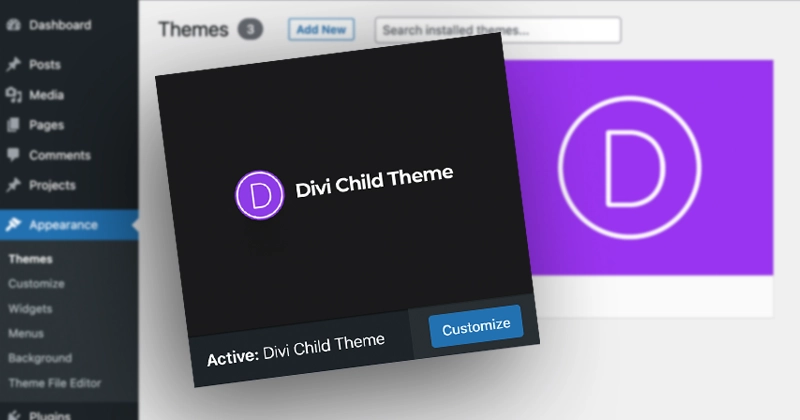
A blank Divi child theme (style.css, functions.php and a thumbnail) to keep your custom code safe from Divi updates; install it in Appearance → Themes → Add New Theme → Upload Theme. Works in Divi 5 and Divi 4.
Get the free downloadIf you'd like to create one yourself, it's much easier than it sounds! (The Child Theme Generator plugin I recommended in the first version of this post has since been closed on WordPress.org for a security issue, so I'd go with the free download or the manual way.)
A child theme only needs one file to work: style.css. In practice you'll also want a functions.php file, the place for your own PHP code.
style.css
The style.css file must contain information about the parent theme to establish the connection between the two themes. The Template line is the important one: it must be the folder name of the parent theme, Divi. This is also where you can add information that will be visible in the WordPress Appearance panel.
/*
 Theme Name:   Divi Child Theme
 Theme URI:    https://divilover.com/divi-child-themes-beginner-guide/
 Description:  A blank child theme for Divi 5 and Divi 4.
 Author:       Ania Romańska
 Author URI:   https://divilover.com
 Template:     Divi
 Version:      1.1
 License:      GNU General Public License v2 or later
 License URI:  http://www.gnu.org/licenses/gpl-2.0.html
 Text Domain:  divi-child-theme
*/


/* Add CSS below this line */
Your own CSS goes below the header.
functions.php
The functions.php file is where you add PHP code. In Divi 5, it can start almost empty:
<?php
/**
 * Divi Child Theme functions.
 *
 * Divi loads its own stylesheet and this child theme's style.css
 * automatically (Divi 5 and current Divi 4 versions), so you don't
 * need any code here to load them.
 *
 * Add your PHP code below this line.
 */
In older tutorials (including the first version of this one), functions.php started with an enqueue function that loaded the parent theme's stylesheet and then the child theme's CSS. You don't need it anymore: Divi 5 (and current Divi 4 versions) load the parent styles and your child theme's style.css for you, in the right order. If your existing child theme still has that function, you can leave it: Divi notices that the stylesheets are already loaded and doesn't load them twice.
Thumbnail
And if this is a project for your clients, a great business move would be to include one additional file: a screenshot.png (or .jpg) to display a child theme thumbnail in the WordPress Dashboard. This could be your client's logo, for example. WordPress recommends a 1200 × 900 px image.
Upload your child theme
When you have these files, you can include all your CSS in the style.css file, and also include additional files if needed. When all the files are ready, you can upload them manually to the website through FTP (into wp-content/themes), or you can zip the folder and install it as a new theme in WordPress: Appearance ➜ Themes ➜ Add New Theme ➜ Upload Theme. Then activate it, and keep Divi installed (but not active) as the parent.
Functionality plugin
As a side note here, there is another way to safely add PHP code to your website without risking losing it with the next update. And that is creating your own functionality plugin. If you are interested, we have a tutorial for that!
Check it out: Why and how to create a WordPress functionality plugin
Final thoughts
A child theme keeps your custom code safe from Divi updates (blank child theme) or gives you a complete, ready-made design (premium child theme). If you only add a little CSS, Divi's own custom CSS fields are enough.
We hope you found this explanation helpful! If you'd like to check out my premium Divi 5 child themes, Milly and Identity, you'll find them in the shop.
Don't forget to download our blank Divi child theme (above) if you need one, or want to take a look at how it's made.
If you have any questions we haven't covered in this article, ask them in my Divi Lovers Facebook group, and we'll update the FAQ section.