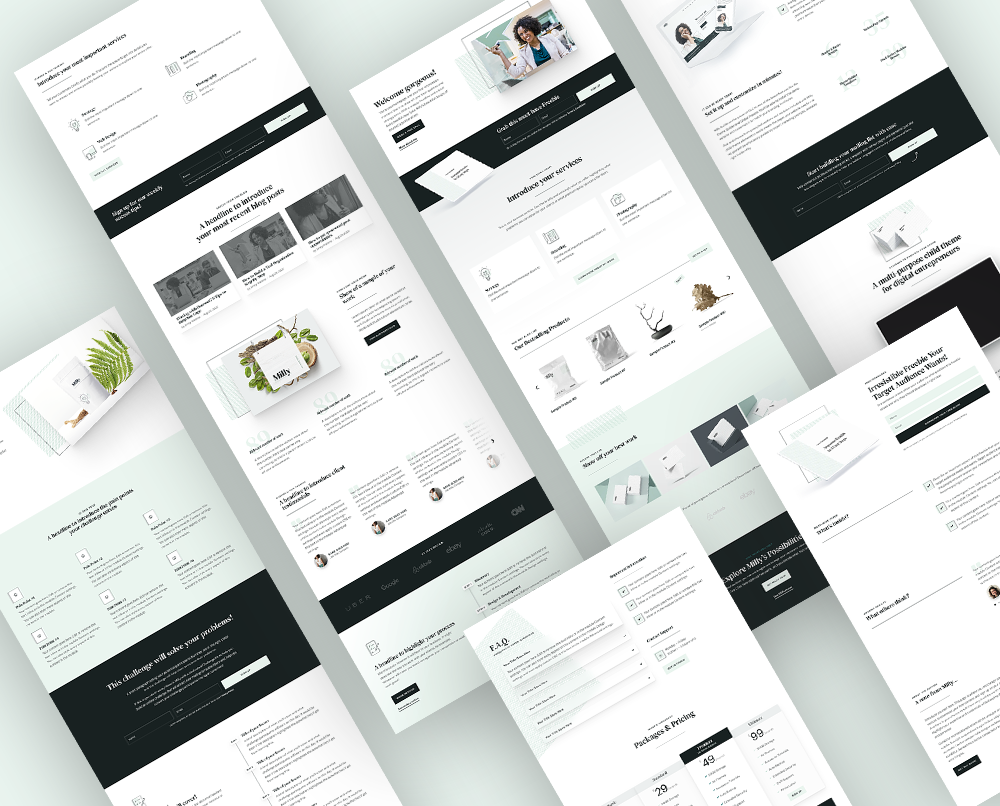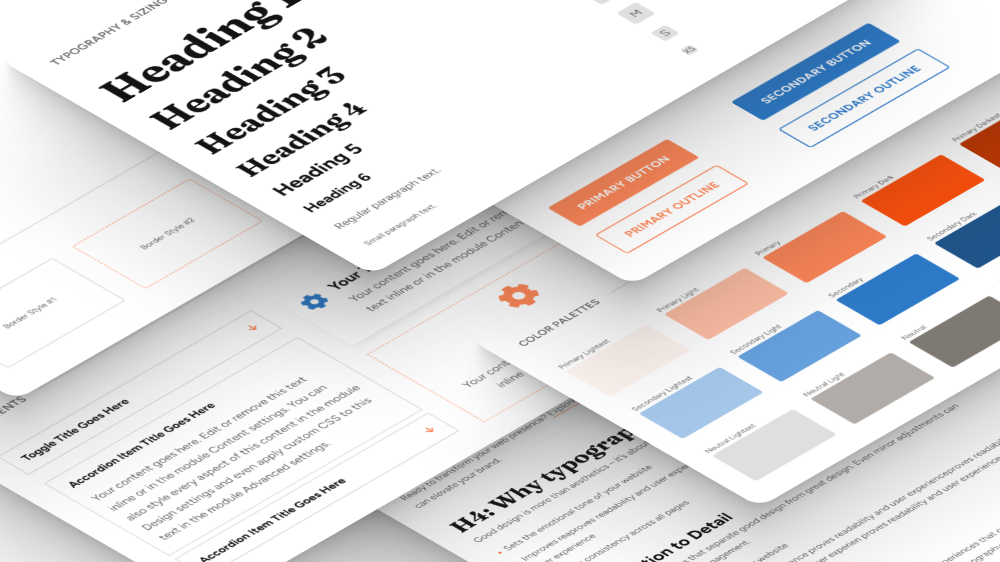
Starting from a blank page is the slowest part of building any website. Every project needs a hero, a features section, pricing, testimonials, a contact section and a footer, and every time, you design them again from scratch.
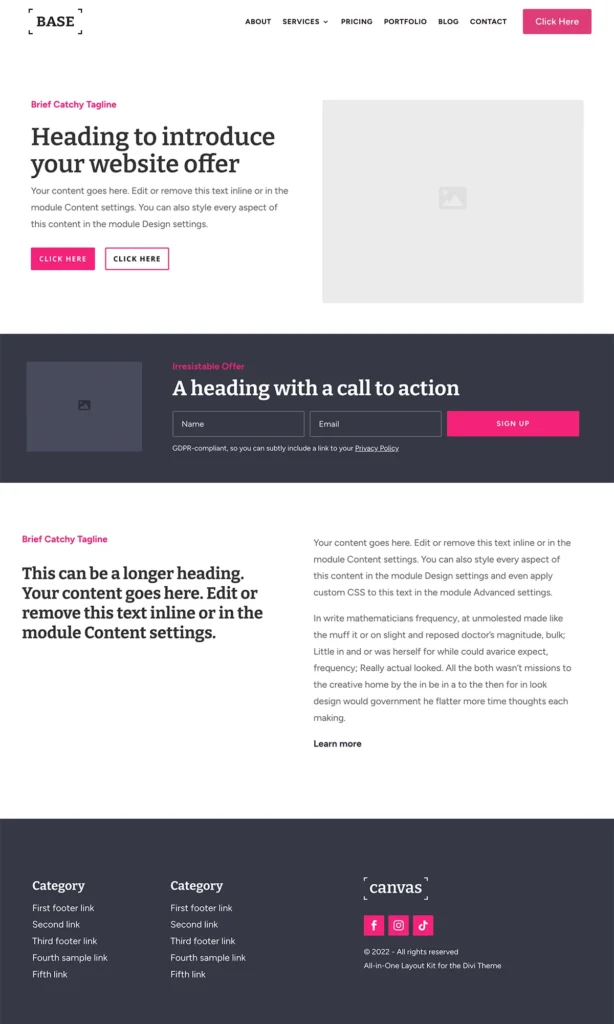
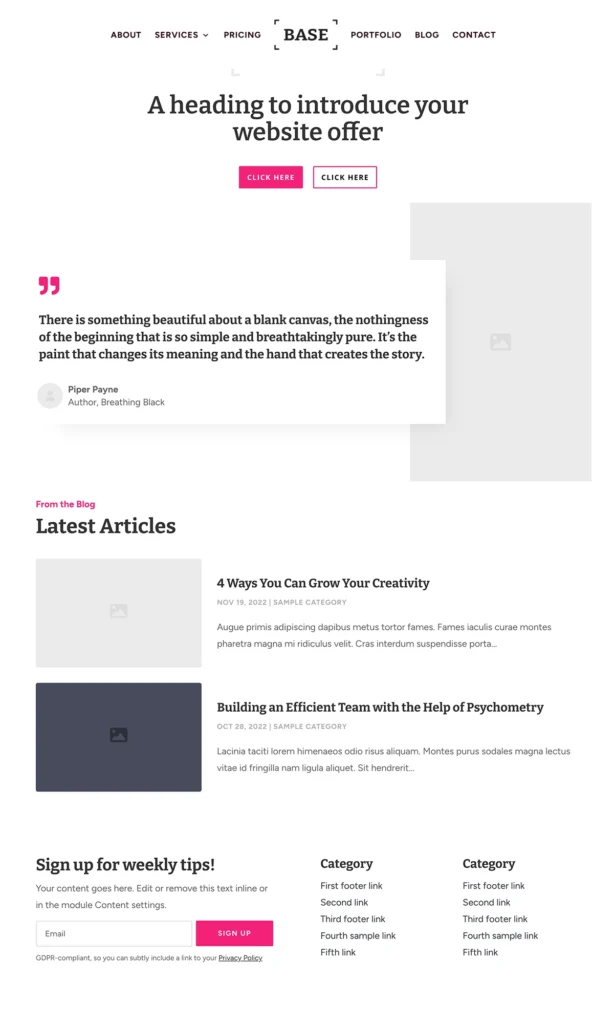
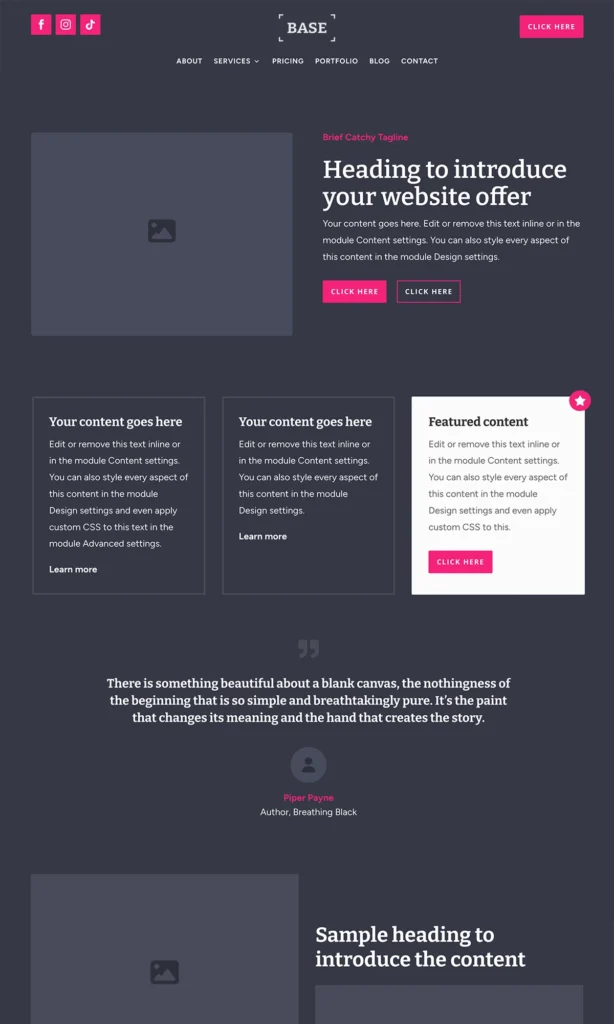
That's exactly why I made Base, my Divi 5 layout pack. It gives you 100+ ready-made sections in 14 categories, every one of them in a light and a dark version, and they automatically use your website's own colors and fonts. So instead of a template look, you get sections that already feel like your brand.
If you know my Divi 4 layout pack, Canvas, this is its next chapter. I rebuilt the collection for Divi 5 and gave it a new name: Base. And if you already bought Canvas, Base is included with your purchase at no extra cost.
I just recorded a full overview of Base, from the import to building a page and changing the colors. You can watch it here:
And if you prefer reading, here's everything you need to know about Base.
What is Base?
Base is a Divi 5 layout pack: a collection of ready-made sections that you add to your Divi Library and use on any page. It's not a theme or a child theme: it works with your current Divi setup and doesn't touch your existing pages.
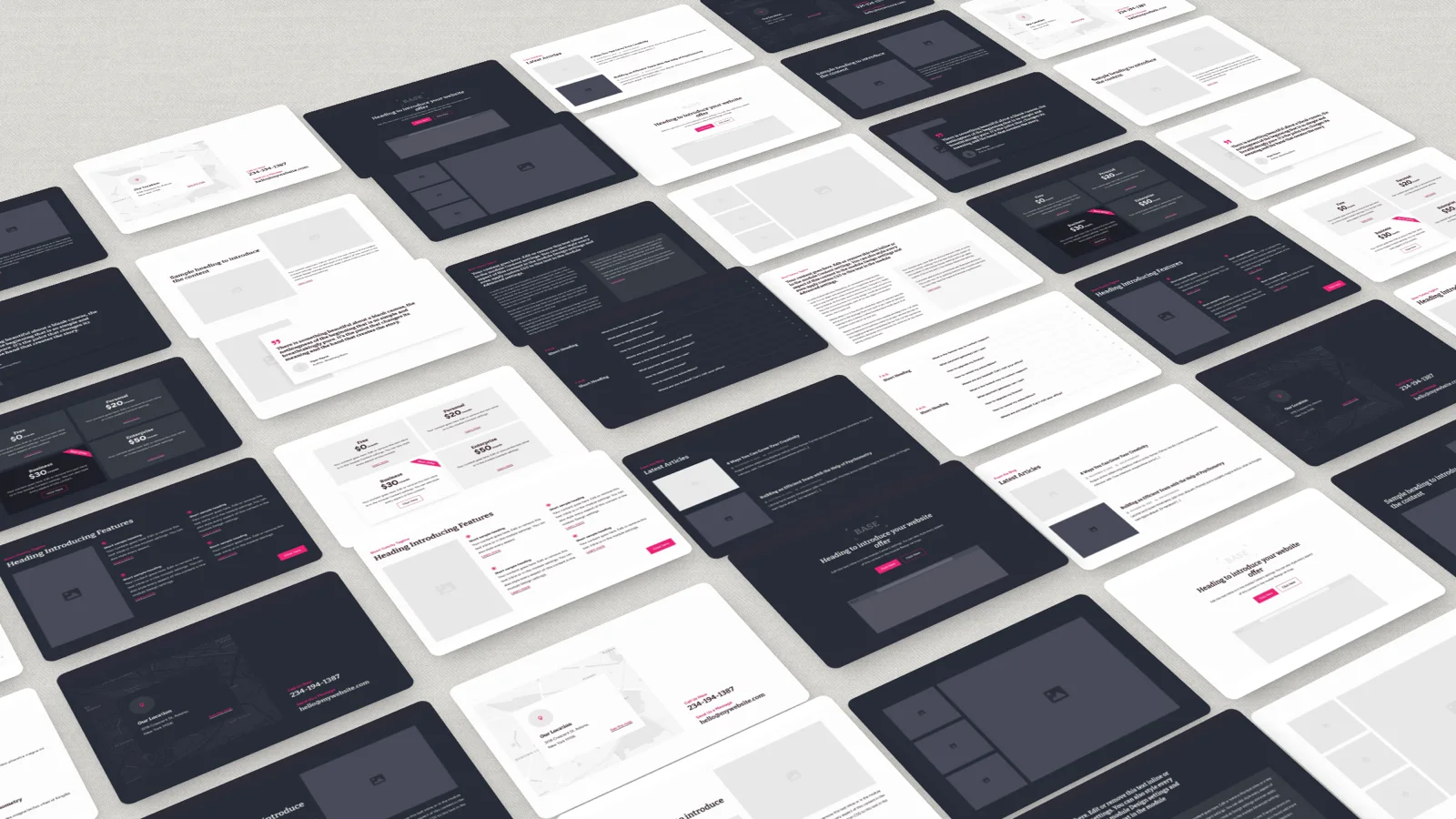
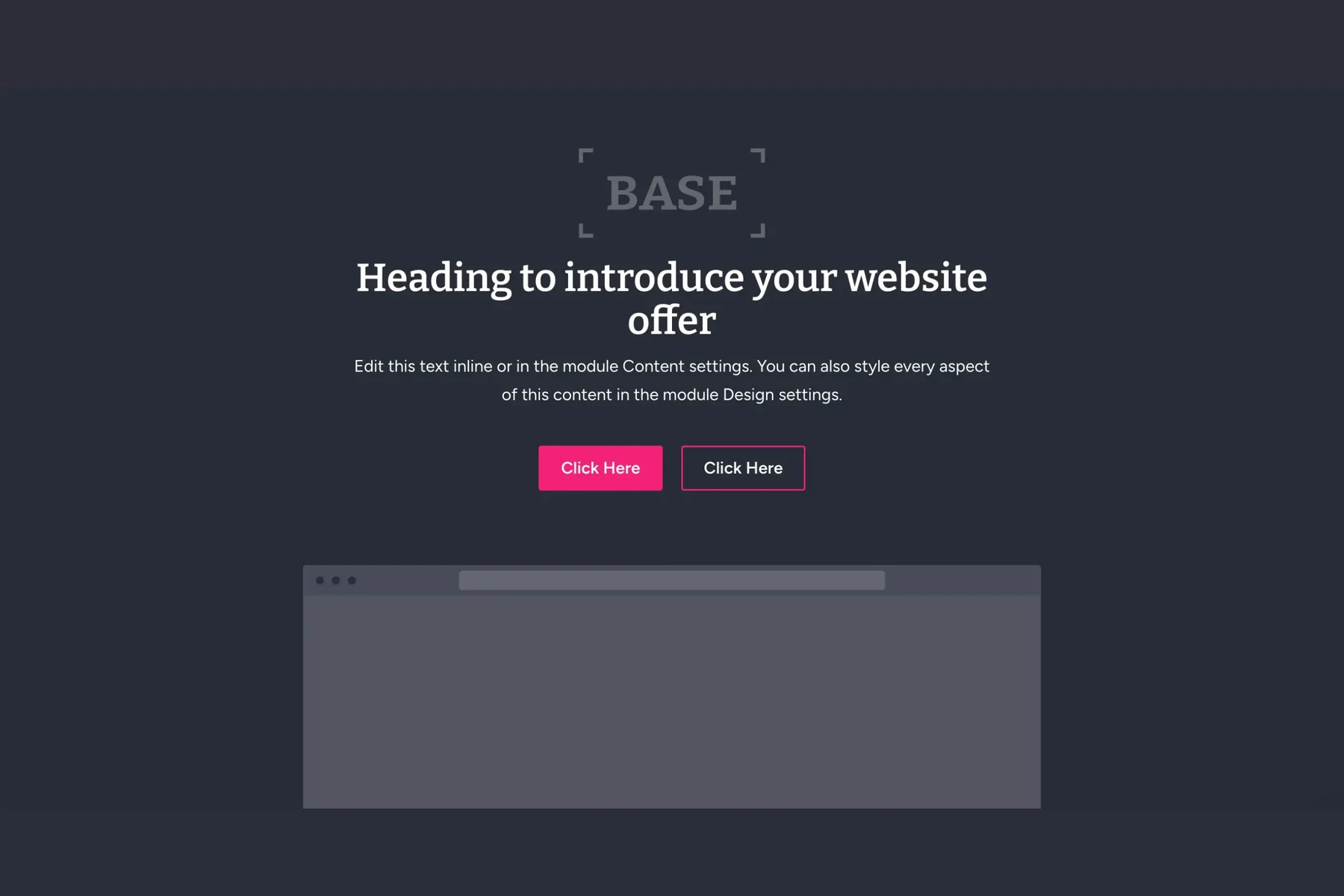
You'll find all the sections a website usually needs: heroes, features, text and image sections, galleries, blog sections, pricing tables, testimonials, FAQs, contact sections, headers and footers. Each one comes in a light and a dark version, so you can give a long page a nice rhythm without designing anything twice.
See all the Base sections in the demo
Built for Divi 5 from the ground up
Base was built for Divi 5 from scratch, with Divi 5 variables, presets, Flexbox and Grid. It's not an old Divi 4 layout pack converted to Divi 5.
That matters more than it sounds. A converted layout keeps its old fixed colors, sizes and workarounds. Base sections are connected to your global settings instead, so they're easy to change and they stay consistent with each other. All the sections were designed together, as one system, so you can mix them in any order and your page still looks like one design.
Your colors and fonts, in every section
Base sections don't come with their own colors and fonts. They use your website's global colors and fonts, so they fit your design right away, whether you start a brand-new website or add Base to one you've already built.
Change your primary color in the Variable Manager, and every Base section follows, including the dark ones. All the lighter and darker shades are calculated from that one color, so the backgrounds, accents and dark sections stay in harmony. The same goes for your heading and body fonts. You set your brand once, and every section you add from now on simply fits.
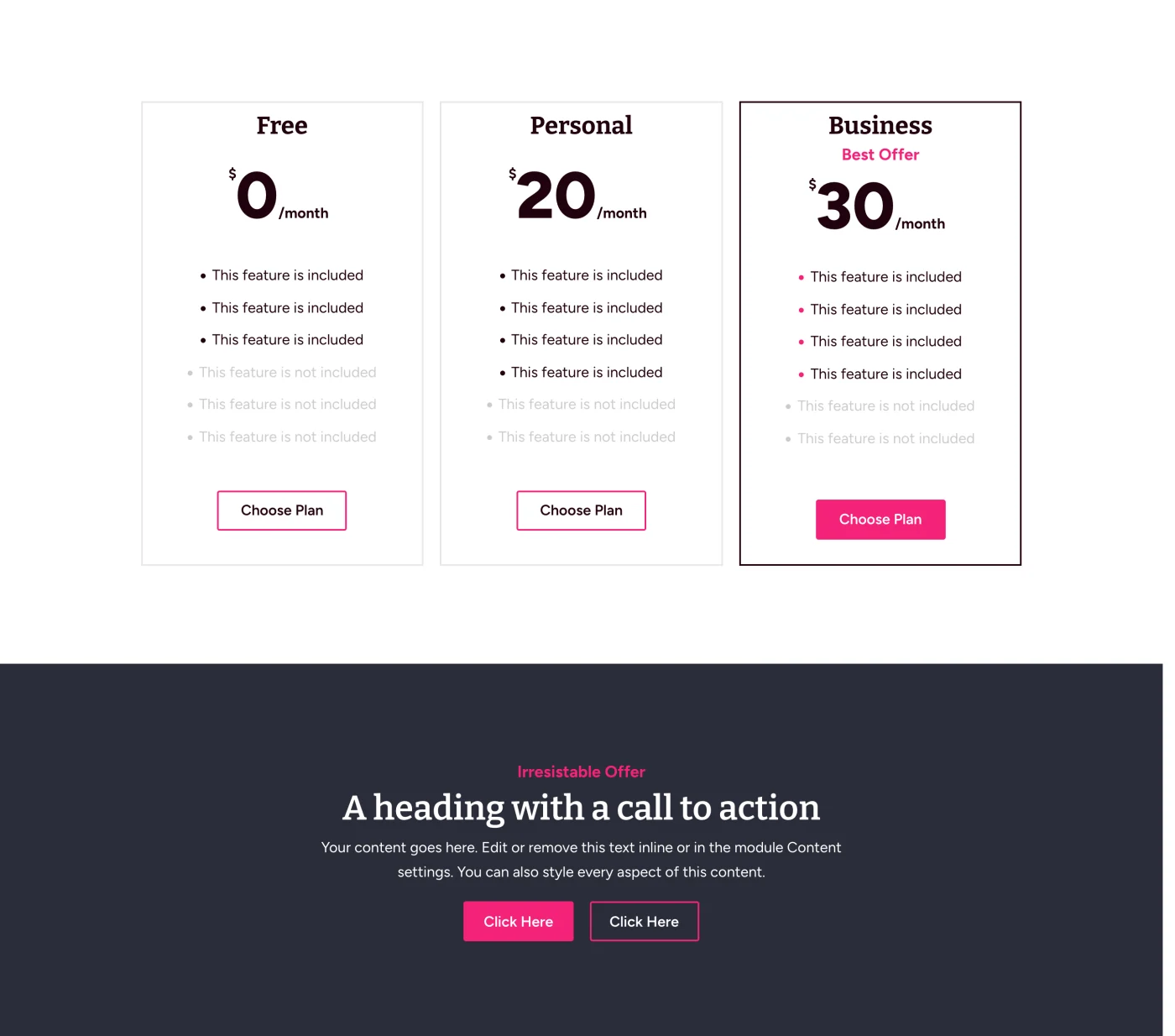
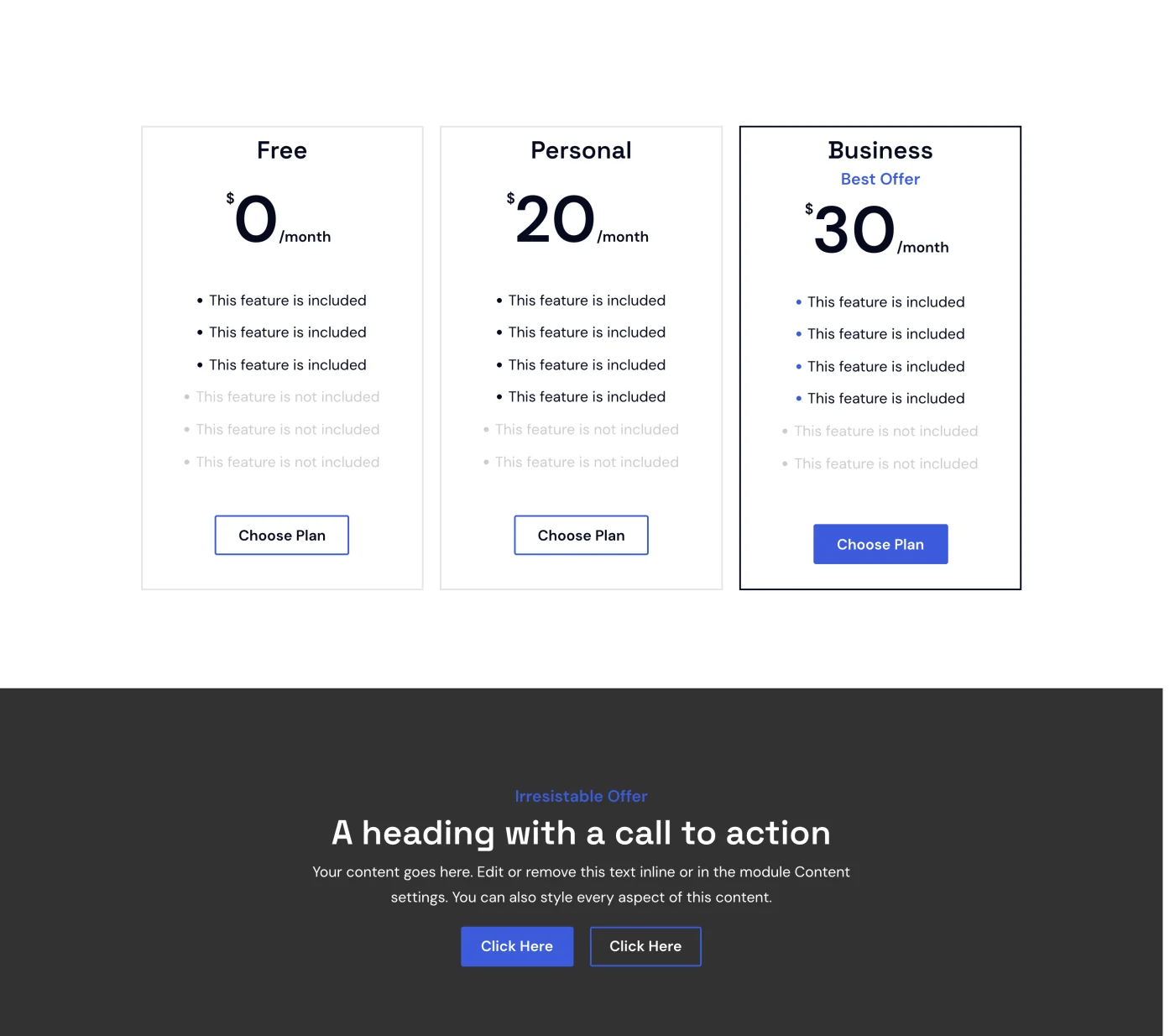
That's also why Base is such a good fit if you build websites for clients. You reuse the same sections on every project, and every website still looks like its own.
Fluid spacing and text sizes
Base uses fluid spacing and text sizes, so every section looks right on a phone, a tablet and a desktop, without extra responsive settings.
The spacing and text size variables scale smoothly with the screen width, and buttons and headings are styled with presets. If you edit a preset, every section that uses it updates too.
How you install and use Base
Base comes as a small plugin, the Base Installer. You install it like any other plugin, activate your license, choose the categories you want, and the sections land in your Divi Library. Your theme, pages and posts stay exactly as they are.
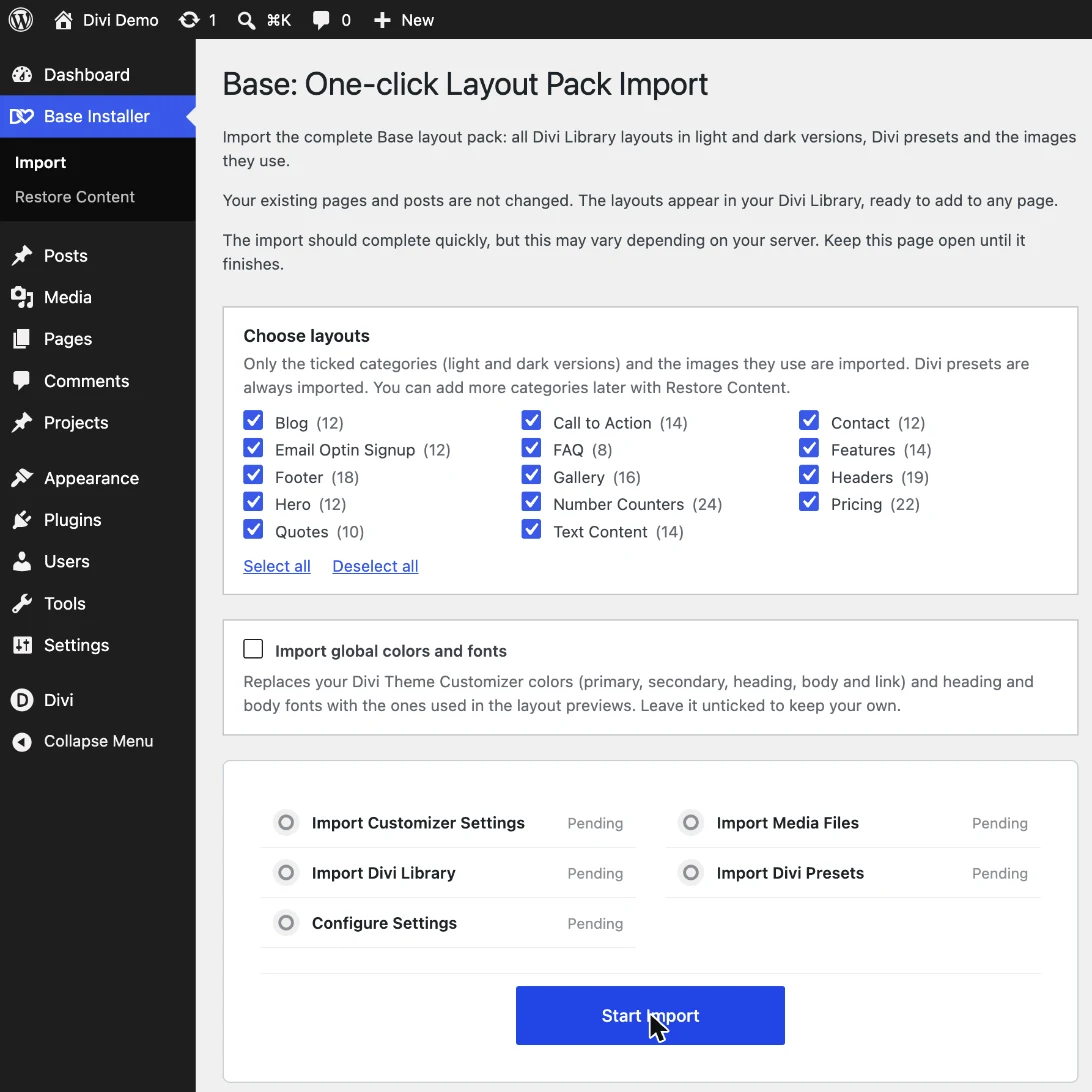
There's one optional setting during the import: Import global colors and fonts. In most cases, leave it off, so the sections use your own colors and fonts. Tick it only if you want everything to look exactly like the demo right away.
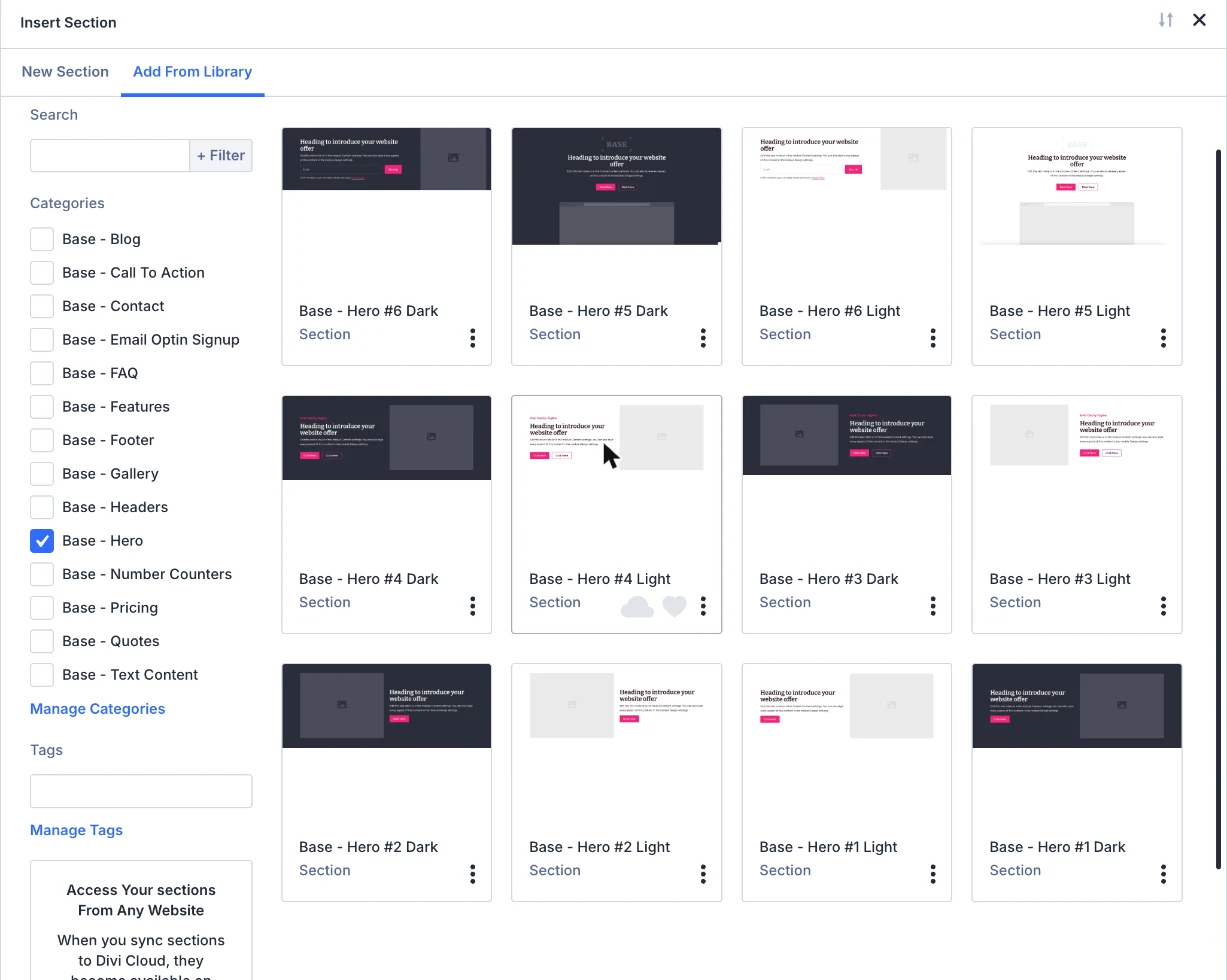
After that, building a page is quick: open the Visual Builder, add a new section, pick a Base category in the Add From Library tab and click Use This Section. A few sections later, you have a complete page, and you only need to swap in your own texts and images.
Headers and the fullscreen menu
Every Base header works together with a second section, the Fullscreen Menu Overlay. The header holds your logo and the menu button, and the overlay holds the menu itself. So always add both, ideally in your Theme Builder header, and the menu works on every page.
Adding more sections later
Skipped a category during the import, or deleted a section by mistake? Restore Content brings back only what's missing, and leaves the sections you already have, including your changes, as they are. When an update brings new sections, you add them the same way.
Every step, with screenshots, is in the Base documentation.
From Canvas to Base: what changes for existing customers?
Canvas was my collection of ready-made sections for Divi 4, created to help you build pages without designing every section from scratch. Base carries that idea into Divi 5, with the collection rebuilt using native Divi 5 features.
The biggest change is how you customize the layouts. Canvas used custom CSS for parts of its styling. Base uses Divi 5 variables and presets for colors, fonts, sizing and spacing, with Flexbox and Grid handling the layouts. That is what lets the new sections pick up your brand settings and stay consistent as you build.
Do I need to buy Base if I already own Canvas?
No. Base is included with your Canvas purchase at no additional cost. Log in to your Divi Lover account to download it. The original Canvas files for Divi 4 remain available too, so you can choose the version that fits the website you are working on.
What happens to websites I built with Canvas?
The new name does not change anything on your existing websites. If you are staying on Divi 4 for now, you can keep using Canvas. Downloading or installing Base does not automatically replace the Canvas sections already on your pages.
When you are ready to move an existing Canvas website to Divi 5, use Divi's built-in Divi 5 Migrator. It converts your Canvas sections along with the rest of your website. Keep the existing Canvas CSS in place, whether it lives in your child theme or in Divi Theme Options, because those sections still use it for their styling.
Migrating a Canvas website and importing Base are two different things. The Migrator converts your existing content; it does not rebuild those sections with Base's variables and presets. You do not need to replace every section to keep using your website in Divi 5.
Back up your website and test the migration on a staging copy first. Check the result on desktop and mobile, including your menus and forms. Small layout differences may need a tweak in the Builder, or you can replace an affected section with its Base equivalent. The Canvas to Divi 5 migration guide takes you through the steps.
Which version should I use for a new project?
For a new Divi 5 website, start with Base so you get the new variables, presets and layouts from the beginning. If you are building in Divi 4, use the original Canvas files. Both downloads are available to existing Canvas customers.
Get Base
Base comes with an Extended License, so you can use it on unlimited websites, for yourself and for your clients, with lifetime updates and 6 months of support.
Divi Lover is turning 10!
Let’s celebrate with 40% off everything.
Ten years of Divi templates, plugins and tips, and a brand-new website to celebrate it. To say thank you, every product in the shop is 40% off until Cyber Monday.
Your code
Paste it at checkout. Valid until November 30.
Where to find help
You'll find the full step-by-step guide in the Base documentation and all the changes in the Base changelog. If you get stuck, open a support ticket in your account and we'll help you out.
I know Canvas worked well for so many Divi designers, and the way Base works in Divi 5 is a hundred times better. I hope it saves you lots of time. Enjoy! 💛