Updated for Divi 5: Divi 5 can reveal a hidden section on click with no code at all, using Interactions, so I added that method first. I also tested the jQuery method in Divi 5: it works, and I updated the "no scroll" snippet, which needs one more step in Divi 5.
How to reveal a hidden section on click in Divi?
Hide the section when the page loads and show it when someone clicks a "Read more" button. In Divi 5 you can set this up with Interactions, without code; in Divi 4 and Divi 5 you can do it with a little CSS and jQuery.
In this tutorial, I will show you how to reveal a hidden section on click with jQuery. It's quite easy with a bit of code, and I will also show you how to add (or remove) a nice automatic scroll once the hidden section is revealed.
You can watch the video tutorial on YouTube or read the instructions below, or do a combination of both, whatever you prefer. If you'd like to be the first to know whenever I post a new video tutorial, I encourage you to subscribe to my YouTube channel and hit the notification bell to get updates.
Just one quick note here: if you're just starting out with custom coding or want to brush up your skills, I have a free CSS in Divi Beginner Guide.
All right, let's get started!
The video was recorded in Divi 4 and shows the jQuery method. It still works in Divi 5; the only difference is that in Divi 5 you add CSS classes and IDs in Advanced → Attributes instead of Advanced → CSS ID & Classes.
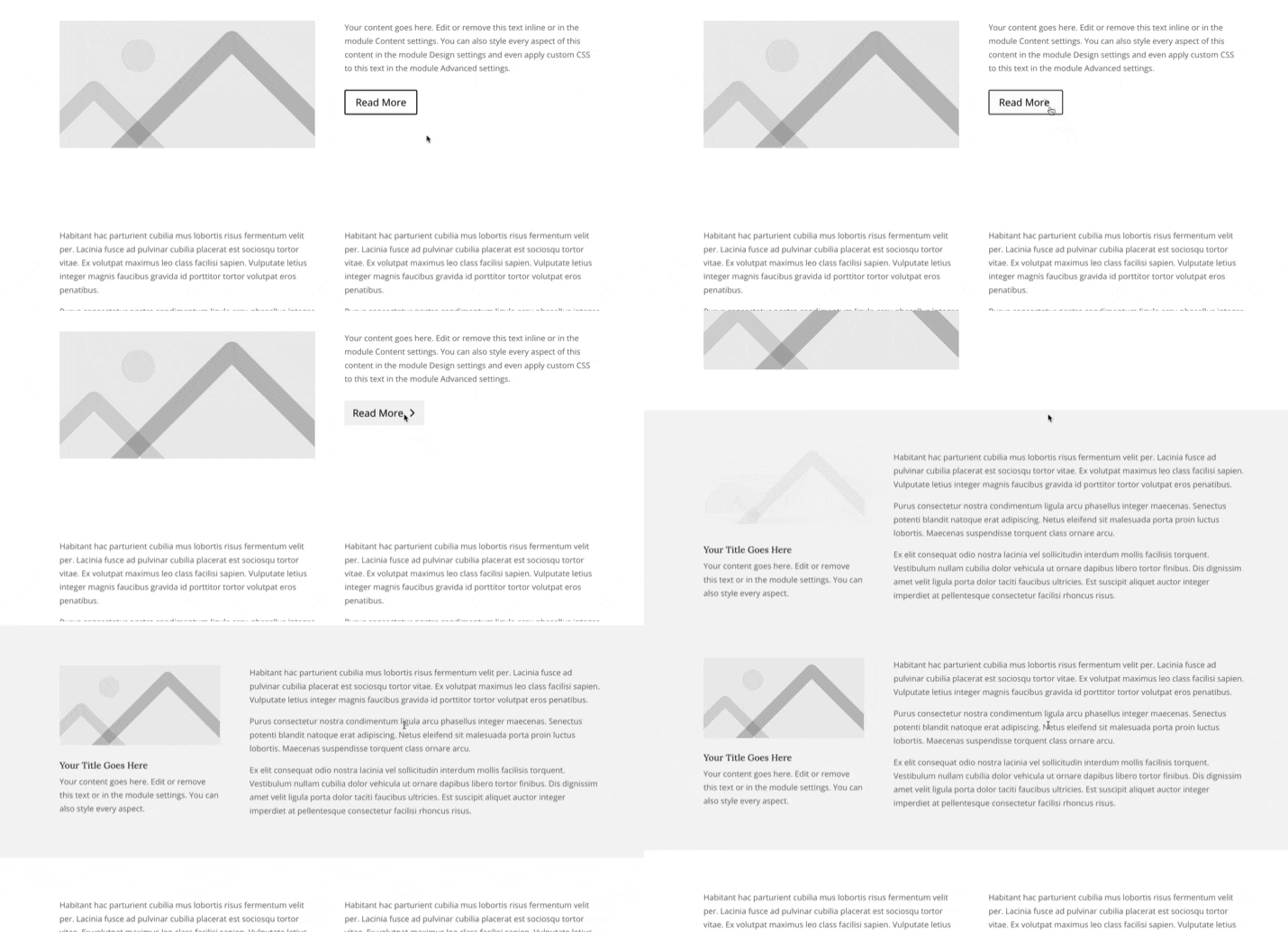
Want to see it first? Here's the demo page.
How to show a hidden section on click with Divi 5 Interactions (no code)
In Divi 5, give the hidden section an interaction that hides it when the page loads, and give the button interactions that show the section and hide the button on click. You set both in Advanced → Interactions → Add Interaction.
- Add the section you want to hide and give it a clear Admin Label (Content → Element Label), e.g. "More". You'll pick it by this name in the next steps.
- In that section's settings, add an interaction: Trigger Event Load, Effect Action Hide Element, Target Module: the section itself. In the Visual Builder the section stays visible, so you can still edit it.
- Add a Button module above it and leave its Link URL empty.
- In the Button settings, add an interaction: Trigger Event Click, Effect Action Show Element, Target Module: your hidden section.
- Add a second interaction to the Button: Trigger Event Click, Effect Action Hide Element, Target Module: the Button itself. Since we are not doing read more/read less, the button is no longer needed.
- Optional: add a third interaction, Trigger Event Click, Effect Action Scroll To Element, Target Module: your hidden section, if you'd like the page to scroll smoothly to the revealed content.
I tested this in Divi 5.18: the section was hidden on load, the click revealed it and hid the button, and Scroll To Element scrolled to it. If you want "Read more / Read less" with one button, use the effect Toggle Visibility instead of Show Element and skip step 5.
How to reveal a hidden section with jQuery (Divi 4 and Divi 5)
Give the button a CSS class and an anchor link, give the hidden section a matching ID, hide the section with CSS and show it with a few lines of jQuery. This works the same in Divi 4 and Divi 5.
Step 1: Create a button trigger
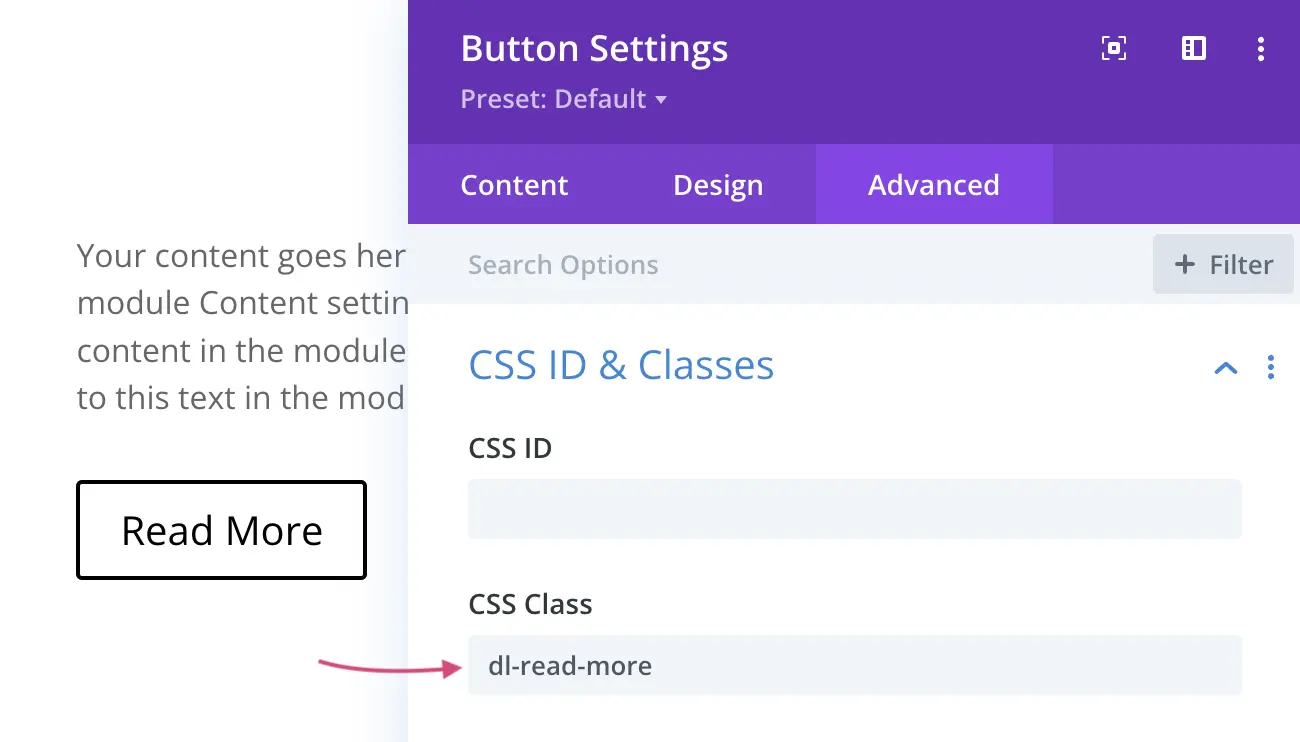
The example I'm showing you in the video is using a Divi Button module as a trigger. To make it work, add a custom CSS class of dl-read-more to the button. In Divi 5: Advanced → Attributes → Add Attribute → CSS Class; in Divi 4: Button Settings → Advanced → CSS ID & Classes.
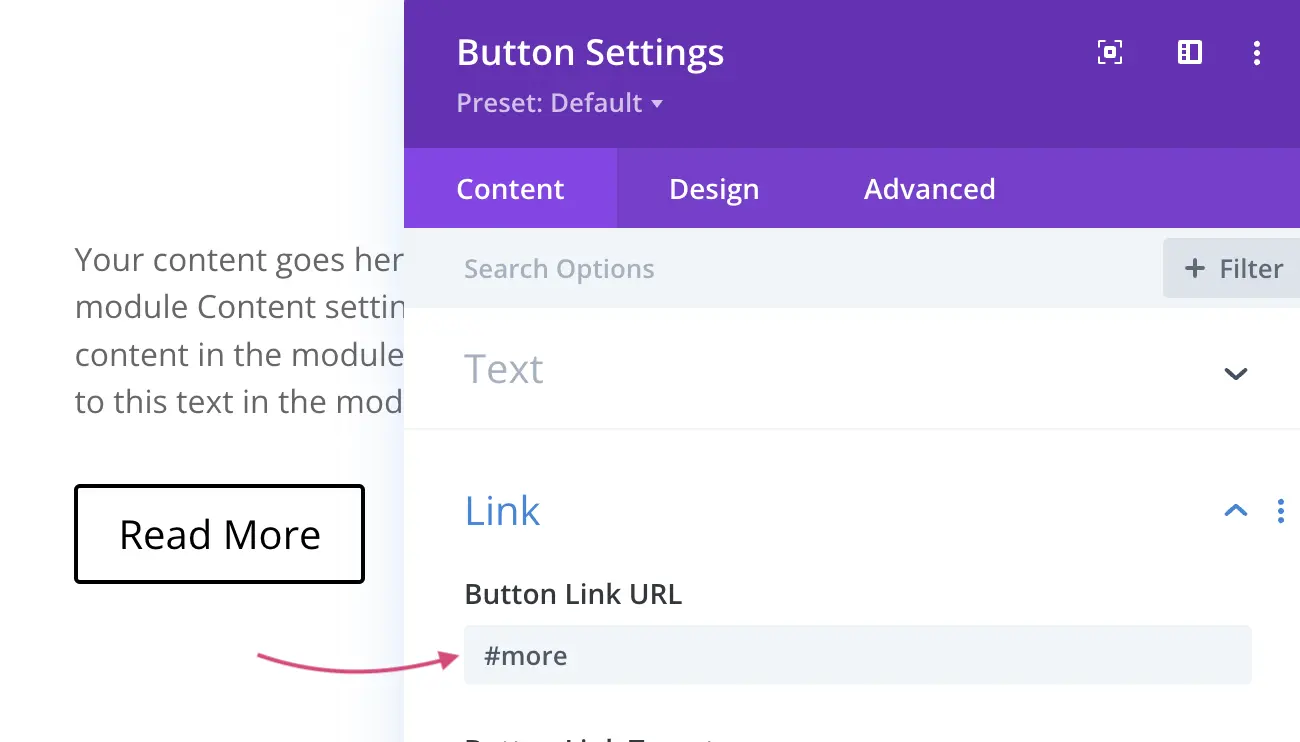
Make sure that the Button Link URL in the Content tab is an anchor link and uses the ID of the hidden section with the hashtag symbol. In our example it's #more.
Step 2: Create a section to hide
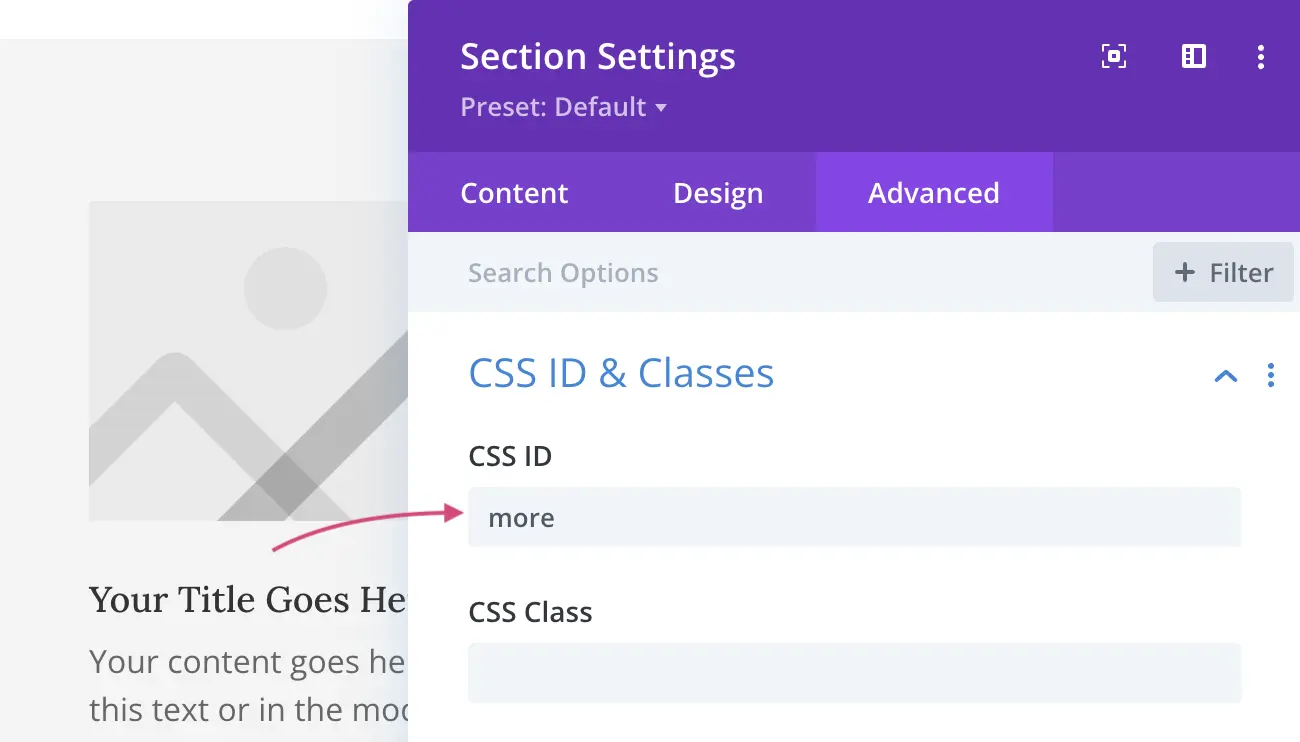
Add a new section which will be hidden initially. Make sure to set the correct CSS ID: it needs to match the Button URL from Step 1. In our example the ID is more (without the hash symbol). In Divi 5: Advanced → Attributes → Add Attribute → CSS ID; in Divi 4: Advanced → CSS ID & Classes.
Step 3: Use CSS to hide the section
We are targeting the section with CSS to hide it, but only on the front-end. The section will remain visible in the Visual Builder, so that you can easily edit it if needed. Add the CSS to Divi → Theme Options → General → Custom CSS (or your child theme stylesheet):
body:not(.et-fb) #more {
    display:none;
}
Step 4: Use jQuery to show the section on button click
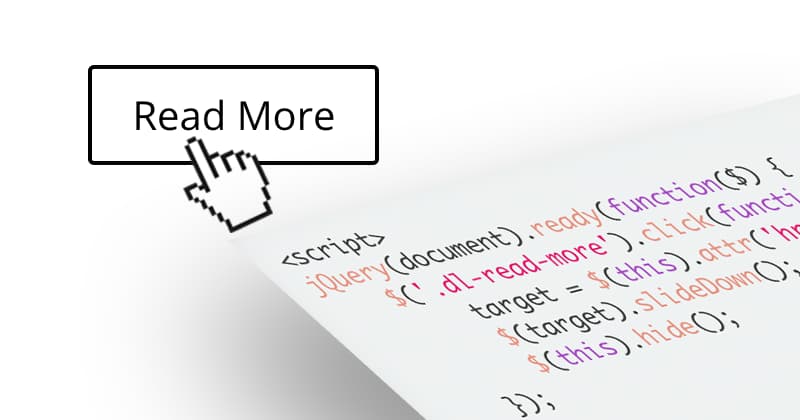
The jQuery script can be placed inside a Code module directly on your page, or (if it's a functionality you'd like to use globally in various places on your website) inside the Theme Options Integration tab. When the Button with the dl-read-more CSS class is clicked, it will slide down the section with the ID more and it will hide the button itself (since we are not doing read more/read less, the button is no longer needed).
<script>
jQuery(document).ready(function($) {
	$('.dl-read-more').click(function(){
		$('#more').slideDown();
		$(this).hide();
	});
});
</script>
Because the button links to #more, Divi's smooth scroll then takes the visitor down to the revealed section. In Divi 5, jQuery is loaded in the footer by default, and the code still works because it is wrapped in jQuery(document).ready().
Optional: Modify the code to prevent the page scroll
If you'd like the section to open without scrolling the page, use this version instead. In my Divi 5 test, e.preventDefault() alone didn't stop the scroll, because Divi's own smooth-scroll script also listens to clicks on anchor links. .unbind() removes that listener from the button first (the same trick as in the multiple-sections code below):
<script>
jQuery(document).ready(function($) {
	$('.dl-read-more').unbind().click(function(e){
		e.preventDefault();
		$('#more').slideDown();
		$(this).hide();
	});
});
</script>
How to use this method for multiple sections?
Give every button and hidden section its own matching name, and let the jQuery read the target from the button's link. The example I showed you in the video walkthrough using the code above will only work in one place, with one button and one section. Follow the steps below and modify the code so that it can be used for multiple sections on one page.
1. Each button URL and section ID needs to have a corresponding name (just like we used "more" in our single-section example).
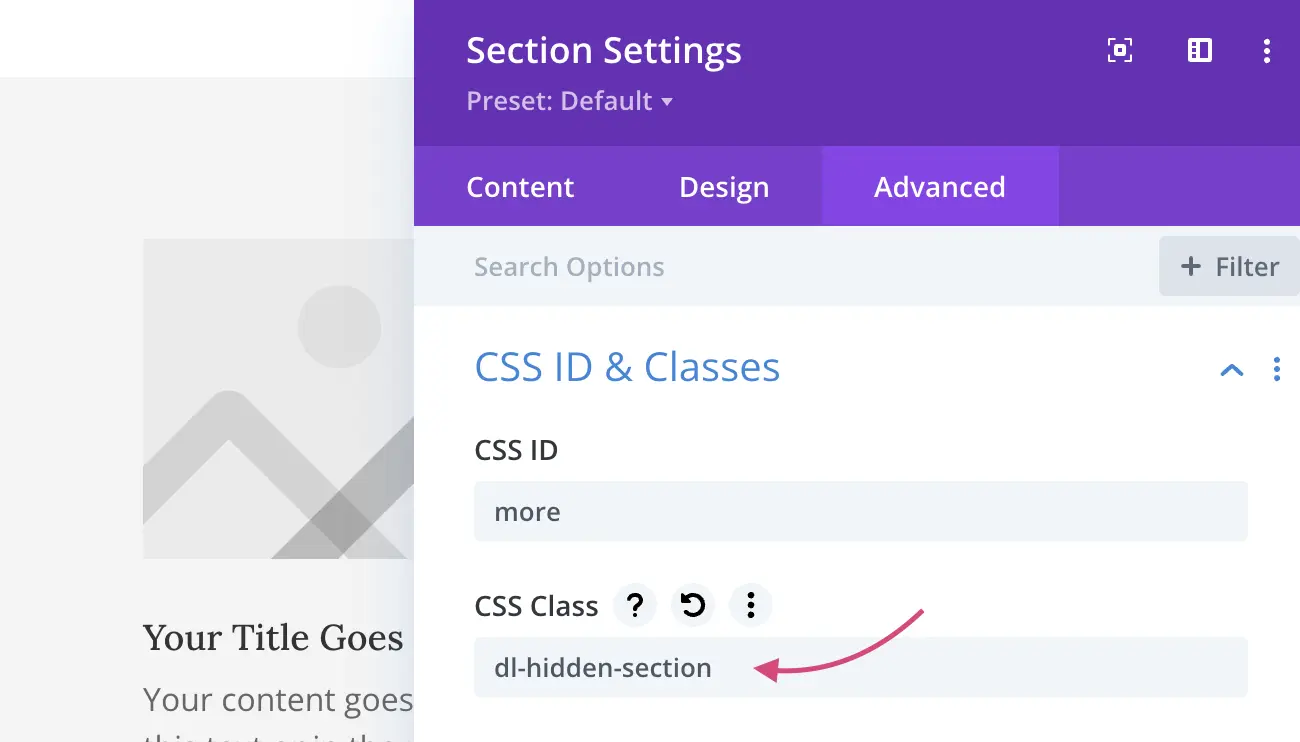
2. Every button will still use the custom CSS class of dl-read-more and every hidden section could also use a CSS class, e.g. dl-hidden-section. This way, you'll be able to target (and hide!) every section at once with this modified CSS code:
body:not(.et-fb) .dl-hidden-section {
    display:none;
}
Then use this jQuery code. It reads the link of the clicked button and reveals the section with that ID:
<script>
jQuery(document).ready(function($) {
	$('.dl-read-more').click(function(){
		var target = $(this).attr('href');
		$(target).slideDown();
		$(this).hide();
	});
});
</script>
Or this code below, if you'd like to prevent the page scroll:
<script>
jQuery(document).ready(function($) {
	$('.dl-read-more').unbind().click(function(e){
		e.preventDefault();
		var target = $(this).attr('href');
		$(target).slideDown();
		$(this).hide();
	});
});
</script>
I tested both versions with two buttons and two hidden sections in Divi 5.
And that's it!
I hope you enjoyed this tutorial, and I hope everything was clear and accessible. If you happen to use these tips, please let me know! I always love seeing your feedback, it helps me see if you find my content helpful and if I should make more tutorials like this one.
And if you have any questions, you can ask them in my Divi Lovers Facebook group. It's a fantastic community of Divi users and web designers where we share useful tips and tricks.