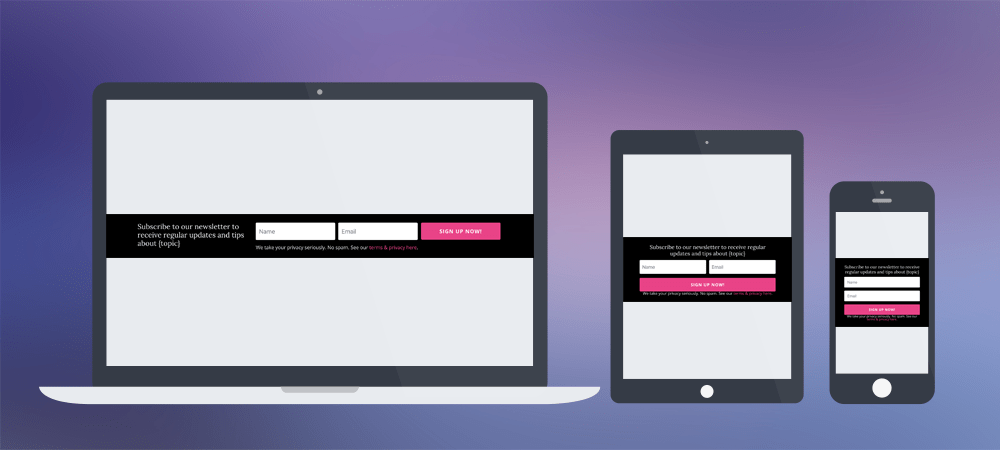
Updated for Divi 5: In Divi 5 the Email Optin fields are stacked in a vertical flex column, so the original CSS no longer put them in one line. The CSS below has three small additions for Divi 5 (tested on a Divi 5 site) and still works in Divi 4.
How to make a slim Divi Email Optin form
Give the Email Optin module a custom CSS class and add a few lines of CSS that put the input fields and the Subscribe button in one row. You get a thin, horizontal signup bar instead of the tall default form, and it still stacks nicely on phones.
A while ago Divi introduced a new HTML markup for its Optin Module, and previously custom-styled forms stopped looking the way you'd like. In this quick tutorial I'd like to show you what CSS you can use to change the default Optin Form into a thinner and cooler version.
The video was recorded in an older Divi version. The idea is the same in Divi 5, but use the updated CSS from this post, and add the class in Advanced tab ➜ Attributes ➜ Add Attribute ➜ CSS Class (Divi 4: Advanced tab ➜ CSS ID & Classes ➜ CSS Class).
Here is how to use the snippets below:
- Add an Email Optin module to a one-column (full-width) row.
- In Content tab ➜ Email Account, choose your email provider and the list. In Divi 5 the form is not shown on the page until an account and a list are selected, so do this first.
- In Content tab ➜ Fields, choose the fields you want: email only, a single name field (Use Single Name Field) or first and last name.
- Add the matching CSS class (
dl-slim-optin1,dl-slim-optin2ordl-slim-optin3) in Advanced tab ➜ Attributes ➜ Add Attribute ➜ CSS Class (Divi 4: Advanced tab ➜ CSS ID & Classes ➜ CSS Class). - Paste the CSS in Divi ➜ Theme Options ➜ General ➜ Custom CSS, in the page settings (Divi 5: gear icon top-left ➜ Page Settings ➜ Advanced ➜ Custom CSS) or in your child theme stylesheet.
Divi 5 also has a Fullwidth toggle for each field (Design tab ➜ Layout), which can put two fields side by side, but the button always gets its own line. For a true one-line form you still need the CSS.
Please note: I'm not a lawyer so this is not legal advice, BUT you don't need any checkboxes to make your signup form GDPR compliant. You need the subscriber's explicit consent to send them emails, but a checkbox is not the only way to get this consent. Use your header and a phrase like "Subscribe to" to make sure it's clear that the user is consenting to a newsletter by signing up.
1. Slim signup form with single input field
For an email-only form, add the CSS class dl-slim-optin1: the email field and the button share one line (49% each), and the privacy text sits underneath.
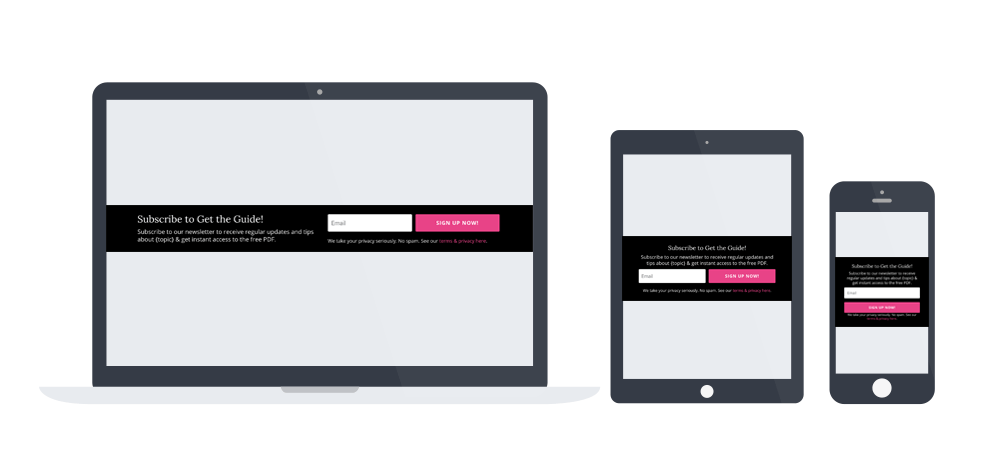
If you are going to use a single e-mail field in your optin form, add a custom CSS class of dl-slim-optin1 and use this CSS code:
/* Divi 5: keep the fields in one row (no effect in Divi 4) */
.dl-slim-optin1 .et_pb_newsletter_fields {
	flex-direction: row;
	column-gap: 0;
}
.dl-slim-optin1 .et_pb_newsletter_footer {
	flex-basis: 100%;
	margin-top: 0;
	font-size: 80%;
}
.dl-slim-optin1 .et_pb_newsletter_form .et_pb_newsletter_field,
.dl-slim-optin1 .et_pb_newsletter_form .et_pb_newsletter_button_wrap {
	flex-basis:49%;
}
@media (max-width:980px) {
	.et_pb_column_4_4 .dl-slim-optin1 {
		display:block;
	}
	.dl-slim-optin1 .et_pb_newsletter_description,
	.dl-slim-optin1 .et_pb_newsletter_form {
		width: 100%;
		padding: 0;
	}
	.et_pb_column_4_4 .dl-slim-optin1 .et_pb_newsletter_description {
		margin-bottom: 10px;
		text-align:center;
	}
	.dl-slim-optin1 .et_pb_newsletter_footer {
		text-align:center;
	}
}
@media (max-width:479px) {
	.dl-slim-optin1 .et_pb_newsletter_form .et_pb_newsletter_field,
	.dl-slim-optin1 .et_pb_newsletter_form .et_pb_newsletter_button_wrap {
		flex-basis:100%;
	}
}
2. Slim signup form with two input fields
For a name + email form, add the CSS class dl-slim-optin2: on desktop the title takes 30% of the width and the name field, email field and button share the other 70%.
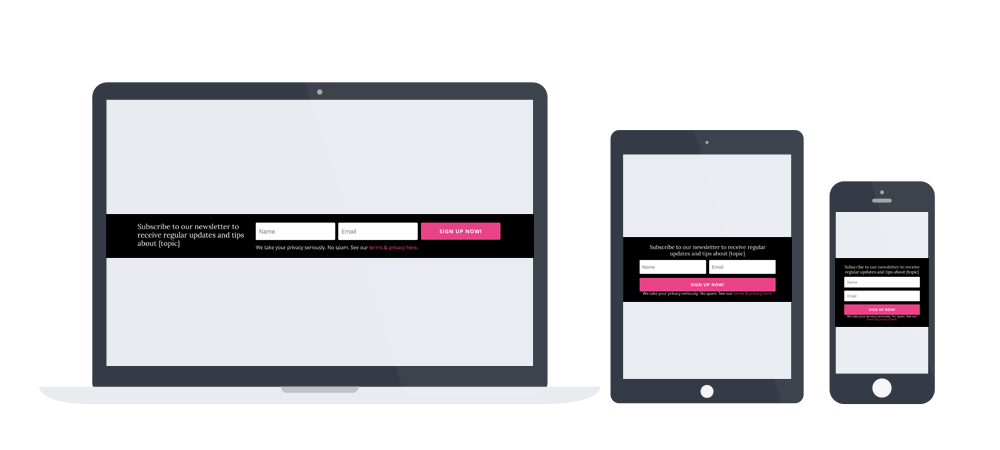
If you are going to use both e-mail and name field in your optin form, add a custom CSS class of dl-slim-optin2 and use this CSS code:
/* Divi 5: keep the fields in one row (no effect in Divi 4) */
.dl-slim-optin2 .et_pb_newsletter_fields {
	flex-direction: row;
	column-gap: 0;
}
@media (min-width:981px) {
	.et_pb_newsletter.dl-slim-optin2 .et_pb_newsletter_description {
		width: 30%;
	}
	.et_pb_newsletter.dl-slim-optin2 .et_pb_newsletter_form {
		width:70%;
	}
}
.dl-slim-optin2 .et_pb_newsletter_form .et_pb_newsletter_field,
.dl-slim-optin2 .et_pb_newsletter_form .et_pb_newsletter_button_wrap {
	flex-basis:32.5%;
}
.dl-slim-optin2 .et_pb_newsletter_footer {
	margin-top:0;
}
.dl-slim-optin2 .et_pb_module_header {
	padding-bottom:0;
}
@media (max-width:980px) {
	.et_pb_column_4_4 .dl-slim-optin2 {
		display:block;
	}
	.dl-slim-optin2 .et_pb_newsletter_description,
	.dl-slim-optin2 .et_pb_newsletter_form {
		width: 100%;
		padding: 0;
	}
	.et_pb_column_4_4 .dl-slim-optin2 .et_pb_newsletter_description {
		text-align:center;
		margin-bottom:10px;
	}
	.dl-slim-optin2 .et_pb_newsletter_footer {
		text-align:center;
	}
}
@media (max-width:600px) {
	.dl-slim-optin2 .et_pb_newsletter_form .et_pb_newsletter_field {
		flex-basis:49%;
	}
	.dl-slim-optin2 .et_pb_newsletter_form .et_pb_newsletter_button_wrap {
		flex-basis:100%;
	}
}
@media (max-width:479px) {
	.dl-slim-optin2 .et_pb_newsletter_form .et_pb_newsletter_field{
		flex-basis:100%;
	}
}
3. Slim signup form with three input fields
For first name, last name and email, add the CSS class dl-slim-optin3: the title goes on top and the three fields and the button share one line (24.5% each), two per line below 800px and one per line on phones.
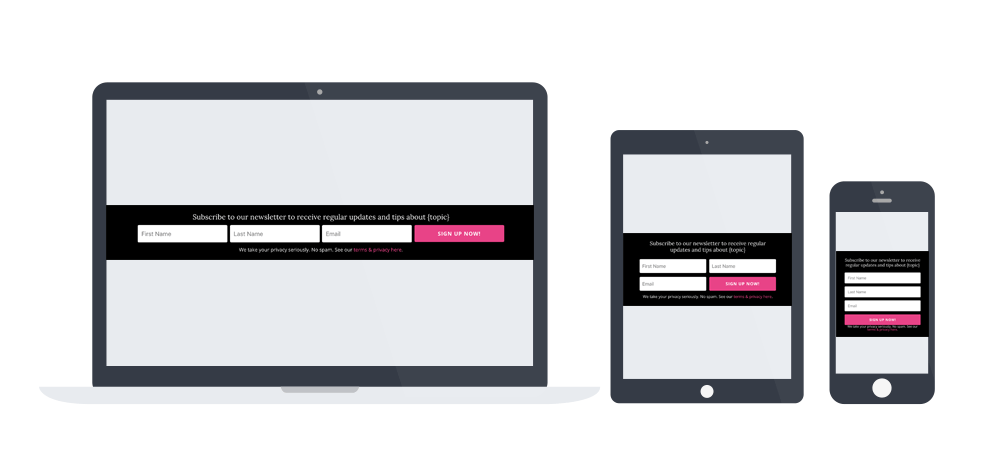
If you are going to use all of the default Divi Optin Module fields: first name, last name and e-mail field in your optin form, add a custom CSS class of dl-slim-optin3 and use this CSS code:
/* Divi 5: keep the fields in one row (no effect in Divi 4) */
.dl-slim-optin3 .et_pb_newsletter_fields {
	flex-direction: row;
	column-gap: 0;
}
.dl-slim-optin3 .et_pb_newsletter_form .et_pb_newsletter_field,
.dl-slim-optin3 .et_pb_newsletter_form .et_pb_newsletter_button_wrap {
  flex-basis:24.5%;
}
.dl-slim-optin3 .et_pb_newsletter_footer {
  margin-top:0;
}
.et_pb_column_4_4 .dl-slim-optin3 {
  display:block;
}
.dl-slim-optin3 .et_pb_newsletter_description,
.dl-slim-optin3 .et_pb_newsletter_form {
  width: 100%;
  padding: 0;
}
@media (max-width:800px) {
  .dl-slim-optin3 .et_pb_newsletter_form .et_pb_newsletter_field,
  .dl-slim-optin3 .et_pb_newsletter_form .et_pb_newsletter_button_wrap {
    flex-basis:49%;
  }
  .et_pb_column_4_4 .dl-slim-optin3 .et_pb_newsletter_description {
    margin-bottom:10px;
  }
}
@media (max-width:479px) {
  .dl-slim-optin3 .et_pb_newsletter_form .et_pb_newsletter_field,
  .dl-slim-optin3 .et_pb_newsletter_form .et_pb_newsletter_button_wrap {
    flex-basis:100%;
  }
}
What changed in the CSS for Divi 5
Three things, all harmless in Divi 4:
flex-direction: rowon.et_pb_newsletter_fields. Divi 5 renders the fields wrapper as a flex container with a vertical direction, so without this line every field and the button sit under each other.column-gap: 0removes the 15px gap Divi 5 adds, otherwise two 49% items no longer fit in one line.- Stronger field selectors. On tablet and phone Divi 5 sets
flex-basis: 100%on the last field with a three-class selector, so the snippets now say.dl-slim-optin1 .et_pb_newsletter_form .et_pb_newsletter_fieldinstead of.dl-slim-optin1 .et_pb_newsletter_field. - The 30/70 split of the two-field version now uses
.et_pb_newsletter.dl-slim-optin2, because Divi 5 sets the title and the form towidth: 100%with a stronger selector.
If you added the old CSS to a site and moved it to Divi 5, replace it with the new version and the forms will be slim again.
Download the free Slim Optin layout
The layout has all three slim forms, each with its CSS in a Code module, so you can import it and pick the one you like. You can also see them on the live preview page.
Free download
Slim Email Optin Forms Layout
Three slim one-line Divi Email Optin forms (email only, name + email, first + last name + email) with their CSS in Code modules. Works in Divi 5 and Divi 4.
Get the free downloadAfter the import, open each Email Optin module and select your own email account and list (Content tab ➜ Email Account). Divi 5 shows the form only after that. Have a question? Ask in my Divi Lovers Facebook group.