Updated for Divi 5: The free layout now comes with a Divi 5 ReadMe and works in Divi 5 and Divi 4. Divi 5 converts it on import; I tested all four menu styles on Divi 5.18 and added text-align: left to their CSS, because the Divi 5 Menu module aligns its text to the right on tablets and phones by default.
Want four free versions of a stunning vertical menu for Divi?
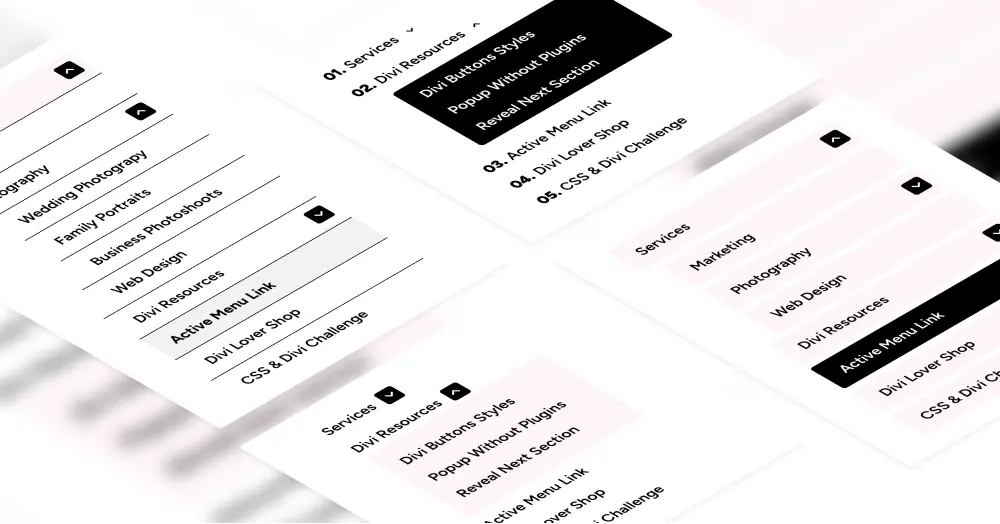
This free Divi layout has four styles of a vertical Menu module with collapsible sub-menus: each sub-menu opens with a click on its arrow, and the menus stay visible as a list on every screen size. Import the layout, pick your menu, and copy the style you like.
Remember our recent tutorial showing you step by step how to create a Divi vertical menu with nested submenus? We used a lot of custom CSS and jQuery to achieve that awesome effect, and now, we have something for those of you who don’t feel like coding their menus. Below, you can download a free Divi layout with not one, not two, but FOUR vertical menu options, all ready to use in your next project!
You can download this layout and use any of the vertical menus in personal or commercial projects. And if you’d like to customize them to better fit your branding, it’s perfectly possible with some basic CSS knowledge and the tutorial I linked above.
Don’t feel ready to dabble with CSS on your own? Start with my beginner guide to custom CSS in Divi, and join the waitlist for my free 5-Day CSS & Divi Challenge. It’s the perfect introduction to custom CSS for Divi users who want to go beyond the limits of Divi but find CSS a bit daunting: for 5 days, I guide you through the key CSS fundamentals, so you can finally grasp what CSS is, how to read and analyze it, and even how to start troubleshooting on your own.
See all four menus in action on the demo page.
Free download
Vertical Menus with Collapsible Submenus Layout
Four styles of a vertical Divi Menu module with collapsible sub-menus that open on click, with the CSS and jQuery included. Works in Divi 5 and Divi 4.
Get the free downloadWhat the four vertical menu styles look like
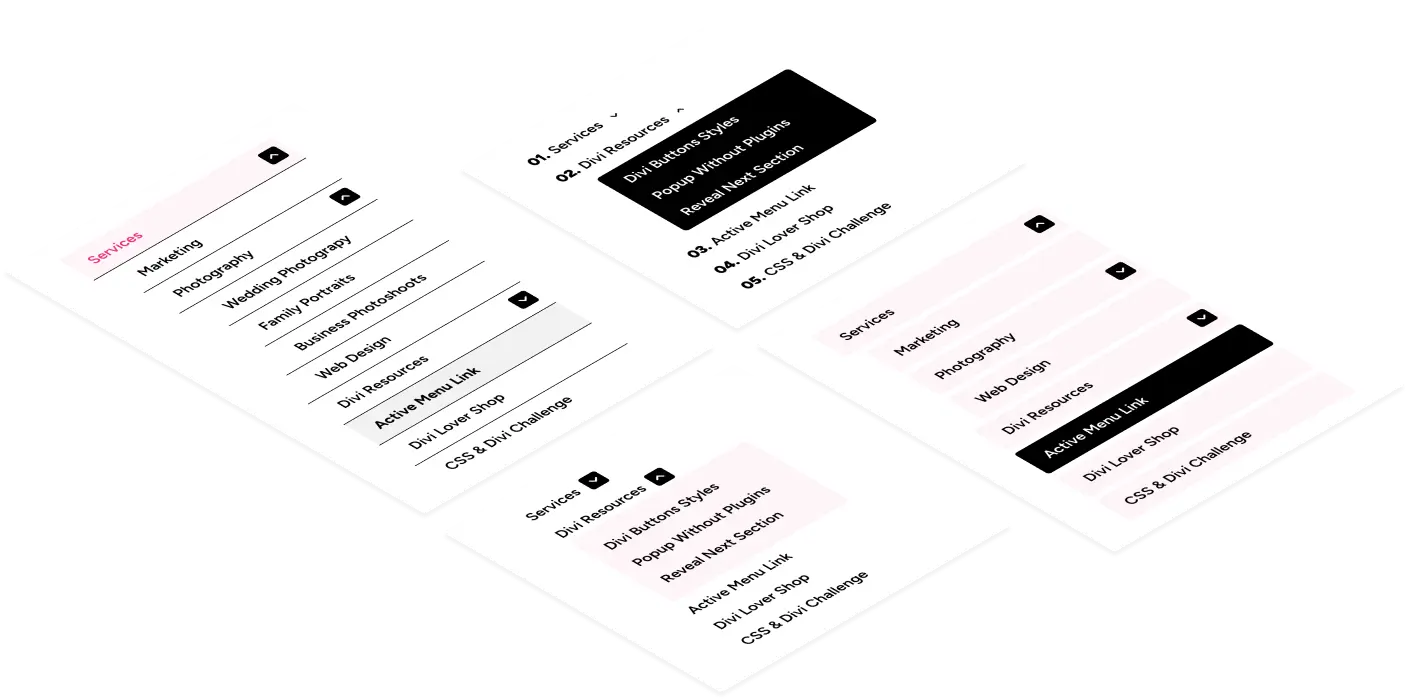
All four styles are Divi Menu modules with the same collapsible behavior; they differ in how the links, the sub-menus and the arrow toggle look. Here's what you can change in each one with the module settings, and what needs a CSS edit:
Menu Style #1: simple list with a sub-menu panel
Links in a plain list, a small black arrow next to each parent item, and sub-menus on a light pink panel.
- Menu module settings: menu link color, active link color, sub-menu background color.
- Custom CSS: the toggle arrow color.
Menu Style #2: links as buttons
Every link is a rounded button with a light pink background that turns pink on hover; the active link is black, and the arrow sits on the right edge of the button.
- Menu module settings: menu link text color, active link text color.
- Custom CSS: the toggle arrow color, the link background color, the link background and text color on hover, the active link background color.
Menu Style #3: list with dividers
Full-width links separated by thin lines, a light pink background on hover, and a bold active link on a light gray background.
- Menu module settings: menu link text color, active link text color.
- Custom CSS: the toggle arrow color, the active link background color, the link background color on hover, the border color.
Menu Style #4: numbered items on a dark sub-menu
Top-level items are numbered with a CSS counter (01., 02., 03.), and the sub-menus sit on a black panel with white links.
- Menu module settings: menu link text color, active link text color, sub-menu background color, sub-menu link color.
- Custom CSS: the toggle arrow color.
How to use and customize the layout
Import the JSON file, open each Menu module and select your own menu, then keep the two Code modules under the style you want: one holds the CSS, the other the jQuery, and both are required.
Import the layout
In Divi 5, open your page in the builder, click the gear icon in the top-left corner and choose Import, then pick the .json file from the zip. Divi 5 converts the Divi 4 layout automatically. In Divi 4, use the Portability icon in the page settings bar → Import.
Once you import the JSON layout in the Divi builder, you will find separate sections for each menu style. The layout points to the menu of our demo site, so select your own menu in each Menu module: Content → Menu.
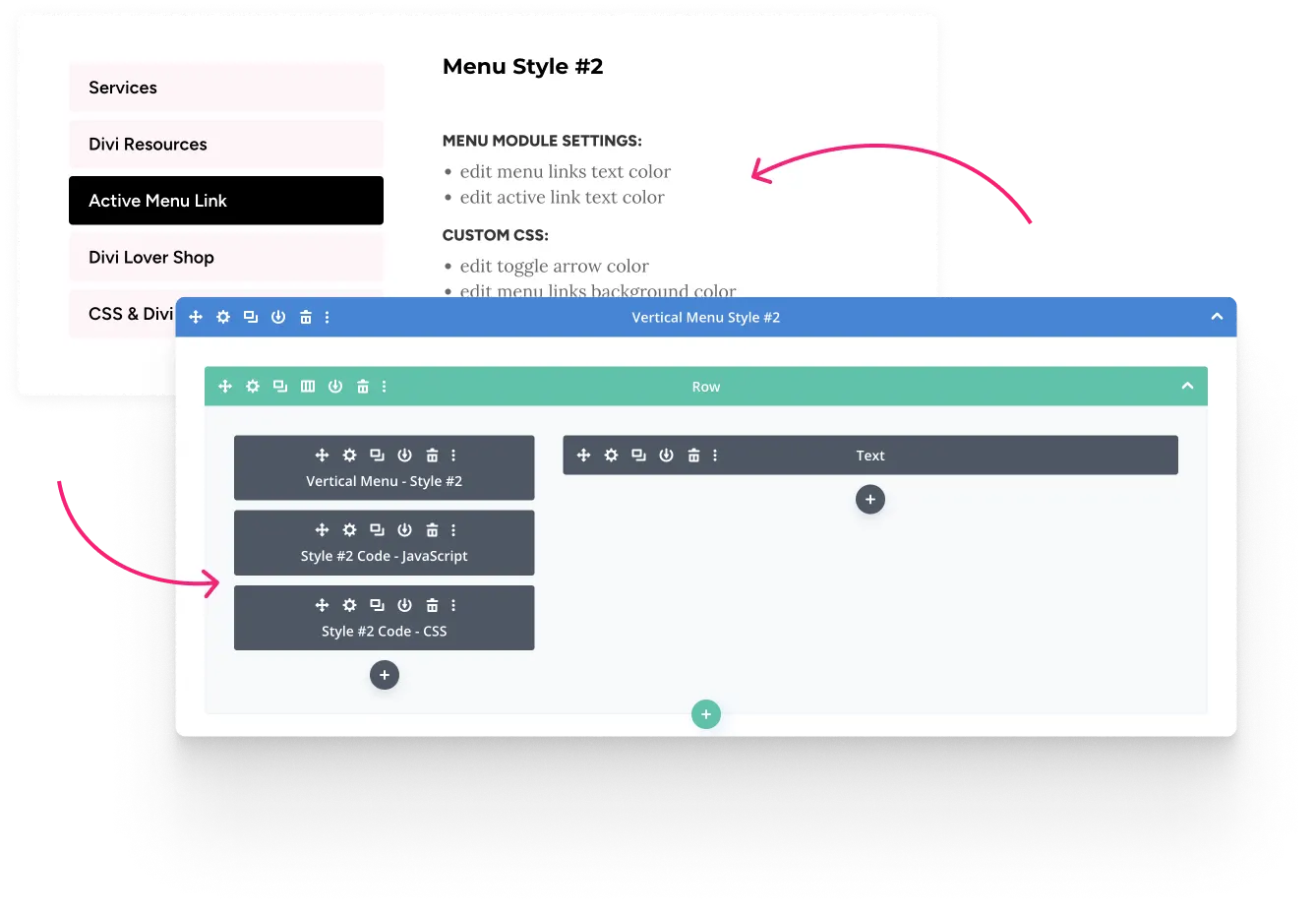
Move the code if you need it on other pages
Some design settings can be edited directly in the module settings, while others may require tinkering with CSS code. There are two Code modules included below each Menu module. Both are required for the menu to work and display correctly. Optionally, you can move the code from here to a different location, as explained below.
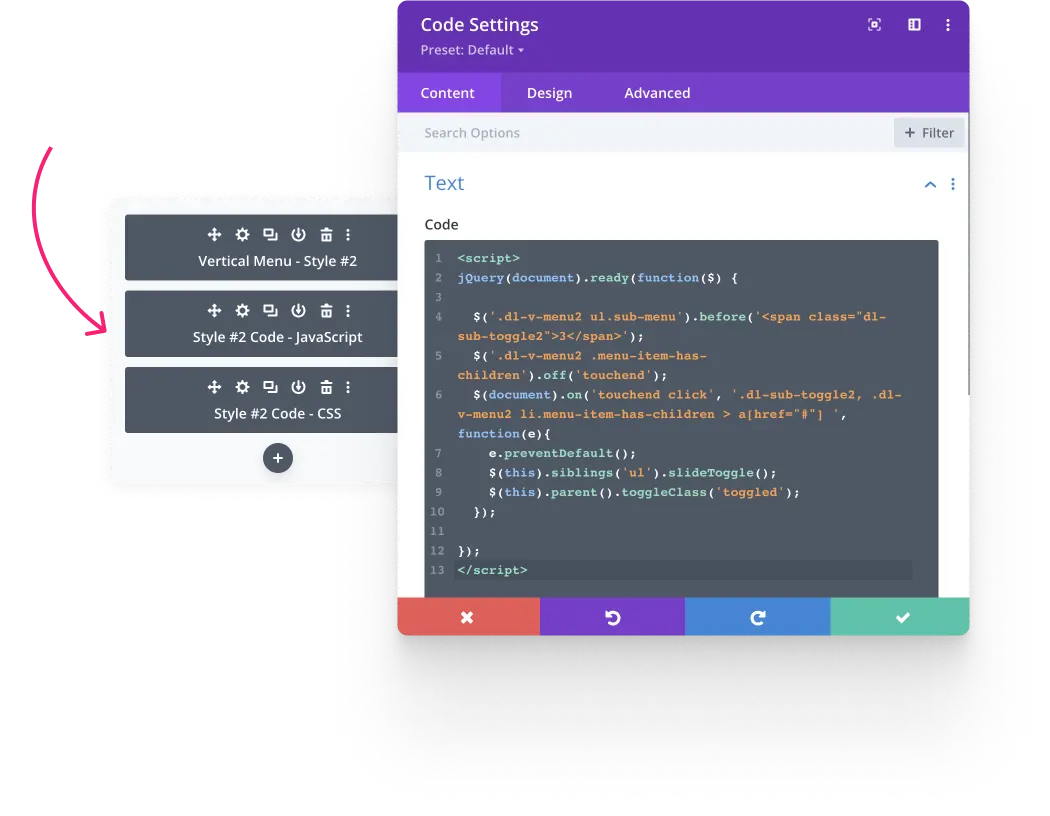
To move the JavaScript, copy and paste the entire contents of the code, including the opening and closing <script> tag, into a Code module on another page or into Divi → Theme Options → Integration ("Add code to the < body >").
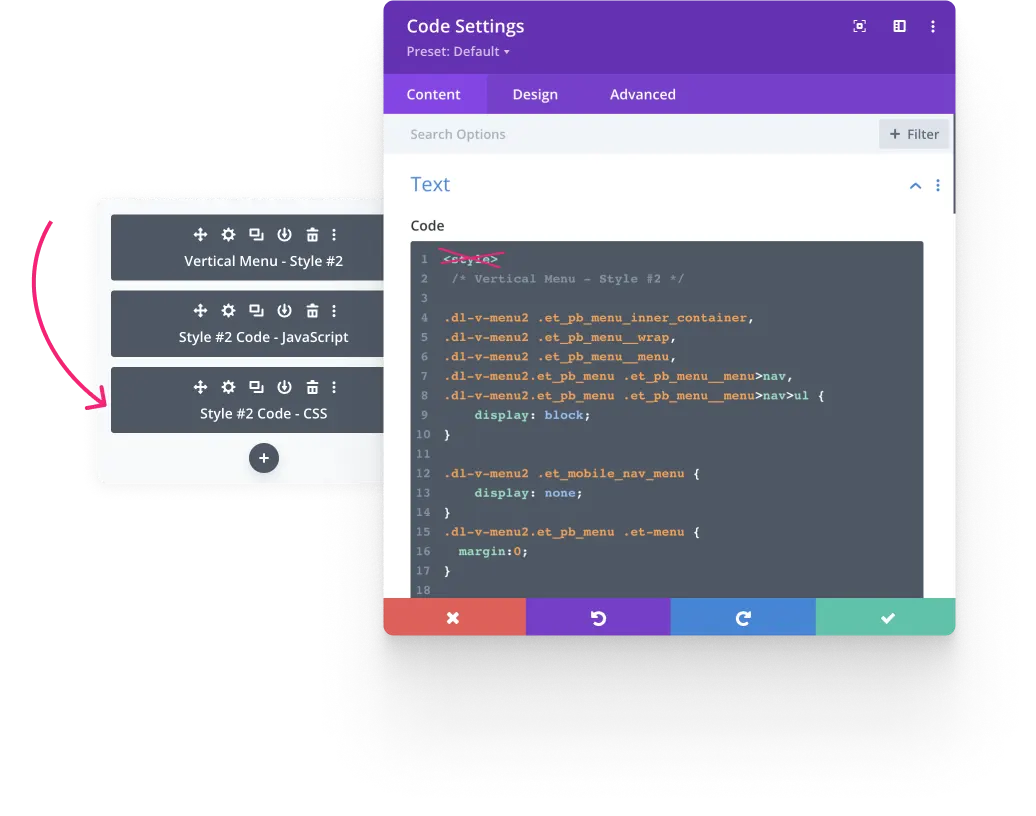
If needed, modify the custom CSS code located inside the Style #n Code - CSS Code Module. You can copy the CSS code and paste it inside your Theme Options → General tab Custom CSS, or inside your child theme stylesheet. When moving the CSS code, only copy the code from between the opening and closing <style> tag.
Each menu style uses its own CSS class (dl-v-menu1 to dl-v-menu4) and its own toggle class (dl-sub-toggle1 to dl-sub-toggle4), so you can use several styles on one page. To give another Menu module the same style, add its class: in Divi 5 via Advanced → Attributes → Add Attribute → CSS Class, in Divi 4 via Advanced → CSS ID & Classes.
Which one is your favorite?
So that brings us to the end. A big thanks to those who downloaded the free Divi layout. Hopefully, you will find those vertical menus easy to use and helpful in making your projects stand out.
Tell me which menu is your favorite (or show me how you styled it) in my Divi Lovers Facebook group. And if you want to understand every line of the code, the step-by-step tutorial explains how it works. Stay tuned for more tutorials, freebies, and Divi tips!