Updated for Divi 5: The layout is a Divi 4 JSON file, and Divi 5 converts it when you import it. Tested in Divi 5.18: the sticky white background, the menu colors, the logo swap and the CSS all work without changes.
Free Sticky Header Layout for Divi
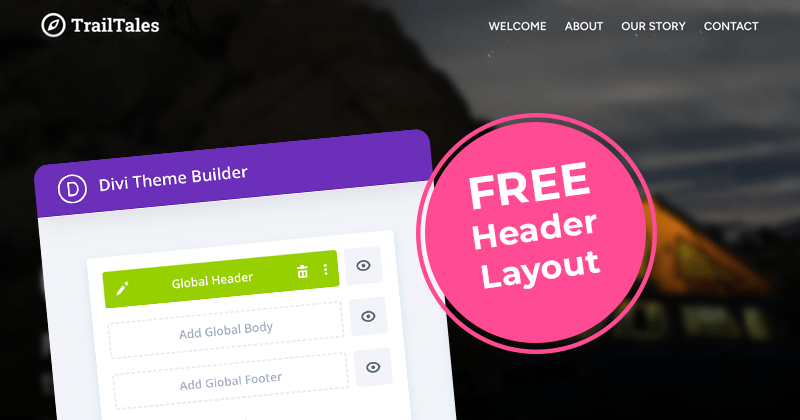
This free layout is a ready-made transparent header for the Divi Theme Builder: it sits over your hero image, sticks to the top as you scroll, and turns white with dark menu links and a colored logo once your visitor scrolls down.
Looking to add a stunning transparent fixed header to your Divi website without the hassle? You’re in the right place! Today, I’m offering a free layout that includes a fully customizable transparent header that stays fixed as you scroll. This post includes a video tutorial where I show you exactly how to import the layout, customize it to fit your brand, and apply the CSS snippet used to achieve this effect.
If you haven’t yet seen my Transparent Fixed Sticky Header in Divi [Step-by-Step Guide], be sure to check it out. It includes a video tutorial where I guide you through creating this header from scratch and share the CSS code used to create this effect.
Let’s dive in and get started with your new transparent header!
Important! This header layout requires that you have the Divi theme for WordPress installed (Divi 5, or Divi 4.23 and up). It is not included with this product.
Free download
Transparent Sticky Header Layout
A Theme Builder header that is transparent over the hero and turns white with a colored logo when it sticks on scroll. Works in Divi 5 and Divi 4.
Get the free downloadWant to see it in action first? Scroll down on the demo page.
What’s inside the free header layout?
The zip contains one JSON file (Sticky_Header_Theme_Builder_Layout.json) with a single header section, and a ReadMe. The header section includes:
- A section with a transparent background that turns white in the sticky state, with Sticky Position set to Stick to Top.
- A Menu module with a white logo and white, uppercase menu links that turn black when the header is sticky.
- An Image module with the colored logo, positioned absolute over the menu logo: it fades in when the header gets sticky, while the white logo fades out.
- Free-Form CSS on the section that moves the page content under the header (
div#et-main-area { margin-top: -76px; }, -40px on tablets and phones).
The two extra snippets from the step-by-step guide (the sticky hover color and the menu spacing) are not in the layout, so copy them from there if you want them.
How to import the header layout in Divi 5 (and Divi 4)
Import the JSON file inside a Theme Builder header, not into the Divi Library (it can’t be imported there directly):
- Download the zip and unzip it.
- Go to Divi → Theme Builder, click Add Global Header and choose Build Global Header.
- In Divi 5, open the gear menu (top-left) → Import and choose Sticky_Header_Theme_Builder_Layout.json. Divi 5 converts the Divi 4 layout for you. In Divi 4, use the Portability (import/export) icon in the builder and choose Import.
- Open the Menu module and select your own menu (the layout points to the menu of my demo site), then replace the white logo in the Menu module and the colored logo in the Image module.
- Save the header, then save the Theme Builder.
How to use and customize it?
Swap the logos and menu, set your own colors in the normal and Sticky states, and adjust the CSS if your header has a different height. If you need instructions on how to install the layout on your website and how to customize it, watch my quick follow-along YouTube video below.
The video was recorded in Divi 4. In Divi 5 the options are in the same places: the Sticky values sit behind the Sticky icon next to Hover and the responsive icons, and the section’s CSS is in Advanced → CSS → Free-Form CSS (Advanced → Custom CSS in Divi 4).
A few tips for customizing it:
- If your header is taller or shorter than 76px, change the -76px (and -40px for tablets and phones) in the section’s Free-Form CSS to your header’s height.
- The colors for the scrolled header are Sticky values: the section’s background color, the Menu Text color, the Hamburger Menu Icon Color and the opacity of both logos.
- The Menu module has a transparent background, and Divi uses it for the dropdown and mobile menu too. If your menu has sub-menus, give the dropdown and mobile menu a background color in the Menu module’s Design tab.
And that’s it!
I hope you love this free layout and find it useful for your Divi projects! If you’re ready to go deeper into Divi design or want to work directly with me, I’d love to connect. The Divi Stylist Academy offers in-depth training and live sessions, or you can reach out to collaborate one-on-one.
All the details you need are just a click away. Thank you for downloading, and happy designing!