Updated for Divi 5: In Divi 5 you can open and close the sidebar with the built-in Interactions, so you don't need any jQuery. The original CSS and jQuery method from 2020 still works in Divi 5 too, so you'll find both below (the jQuery one is the way to go in Divi 4).
How to create a slide-in sidebar section in Divi
A slide-in sidebar is a regular Divi section with a fixed position, pushed off the right edge of the screen with CSS. A click on a button adds a CSS class to the section, and the section slides into view.
A sidebar section is a great and useful tool but it can also distract the user from the main content of your page. Especially when it takes a lot of the website's space.
That's why in this tutorial, I will show you how to use Divi Builder to create a slide-in sidebar that will show up only after you click on the button.
We are going to use some custom CSS, and either Divi 5 Interactions or a bit of jQuery code to achieve that. Watch my step-by-step walkthrough video and copy the code we used below!
The video was recorded in Divi 4 and shows the jQuery method. The section setup is the same in Divi 5, only the CSS class field moved (see Step 1), and the Divi 5 Interactions method is explained below.
See the slide-in sidebar in action on the live demo page.
Free download
Slide-in Sidebar Section Layout
A Divi page with a fixed sidebar section that slides in from the right when you click a button, with the CSS and jQuery in Code modules. Works in Divi 5 and Divi 4.
Get the free downloadHow to build the slide-in sidebar section
You need three elements: a fixed section that holds the sidebar content, a close button inside it, and a button on the page that opens it. The steps are the same for both methods below.
Step 1: Add a section in the Divi Builder
Add a new section for the sidebar and open its settings:
- In Advanced tab ➜ Position, set Position to Fixed and the location to Top Right. The free layout also sets the Z Index to 9 in the same group, so the sidebar sits above your page content.
- Add the CSS class dl-slide-sidebar. In Divi 5: Advanced tab ➜ Attributes ➜ Add Attribute ➜ CSS Class; in Divi 4: Advanced tab ➜ CSS ID & Classes.
- In Design tab ➜ Sizing, set the Width and Max Width to 300px and the Height to 100vh.
- In Advanced tab ➜ Visibility, set Vertical Overflow to Scroll, so a sidebar with a lot of content can be scrolled.
Give the section an admin label (for example "Slide Sidebar"), it makes the section easy to find when you set up the Divi 5 Interaction later.
Step 2: Add the Close Button inside the Sidebar
To create an X close button we used the Blurb module added in the sidebar section. The module does not have a title, nor any content. We enabled the icon and changed the width, height, and the icon size to 50px. To make sure the sidebar section slides out upon clicking on the Blurb, we've added a custom CSS class of dl-close (same place as in Step 1), so that we can target this element in our code.
Step 3: Add the Button trigger
We are using a standard Divi Button with a custom CSS class of dl-btn-toggle and the Button Link URL set to #. With jQuery, the button text will be changed dynamically, but on the page load it is set to "Open".
How to open the sidebar with Divi 5 Interactions (no jQuery)
In Divi 5, a Toggle Attribute Interaction on the button adds and removes the is-opened class on the sidebar section, and three CSS rules turn that class into the slide-in animation. No JavaScript to copy.
Add the CSS
Add this CSS in Page Settings (gear icon top-left ➜ Page Settings ➜ Advanced ➜ Custom CSS) or in Divi ➜ Theme Options ➜ General ➜ Custom CSS:
body:not(.et-fb) .dl-slide-sidebar {
  transform: translateX(100%);
  transition: transform .7s;
}
body:not(.et-fb) .dl-slide-sidebar.is-opened {
  transform: translateX(0);
}
translateX(100%) moves the section by its own width, so it always matches the width you set in Step 1. body:not(.et-fb) keeps the sidebar visible while you edit it in the Visual Builder (Divi 5 still adds the et-fb class to the body in the builder).
Make the button open and close the sidebar
Open the Button settings and go to Advanced tab ➜ Interactions ➜ Add Interaction:
- Trigger Event: Click
- Effect Action: Toggle Attribute
- Attribute Name: class
- Attribute Value: is-opened
- Target Module: the sidebar section
Each click now adds the class if it's missing and removes it if it's there, so the same button opens and closes the sidebar. Divi also stops the "#" link from jumping to the top of the page and gives the button a hand cursor.
Make the X close the sidebar
Open the settings of the dl-close Blurb and add one more Interaction: Trigger Event Click, Effect Action Remove Attribute, Attribute Name class, Attribute Value is-opened, Target Module: the sidebar section.
The button label stays the same in this version (so pick a label that works for both, like "Menu" or "More"). If you want it to switch between "Open" and "Close", use the jQuery method below.
Optional: keep the sidebar in its own canvas
Divi 5 Canvases let you build the sidebar outside your page layout, so it doesn't cover your content while you edit the page. Open the canvas menu in the Visual Builder (the one that shows Main Canvas), click Add Canvas and build the sidebar section there. Back on the Main Canvas, pick that section as the Target Module of the button's Interaction. On the front end, Divi adds a canvas to the page when an Interaction targets something inside it, and the sidebar works exactly the same.
How to open the sidebar with CSS and jQuery (Divi 4 and Divi 5)
The original method adds the is-opened class with a few lines of jQuery. It works in Divi 4 and in Divi 5 (Divi 5 still loads jQuery and runs scripts from a Code module), and it also switches the button text between "Open" and "Close".
Add the CSS Styles!
Here is the CSS code we used to hide the sidebar only if not in the Visual Builder and to show it when it gets a new CSS class of is-opened. The "translateX" value needs to match the section width (or use 100%, which always matches). The last bit adds a hand cursor to the Blurb module:
body:not(.et-fb) .dl-slide-sidebar {
  transform:translateX(300px);
}
body:not(.et-fb) .dl-slide-sidebar.is-opened {
  transform:translateX(0);
}
.dl-slide-sidebar.has-transition {
  transition:.7s;
}
.dl-close {
  cursor:pointer;
}
Finally, the jQuery magic!
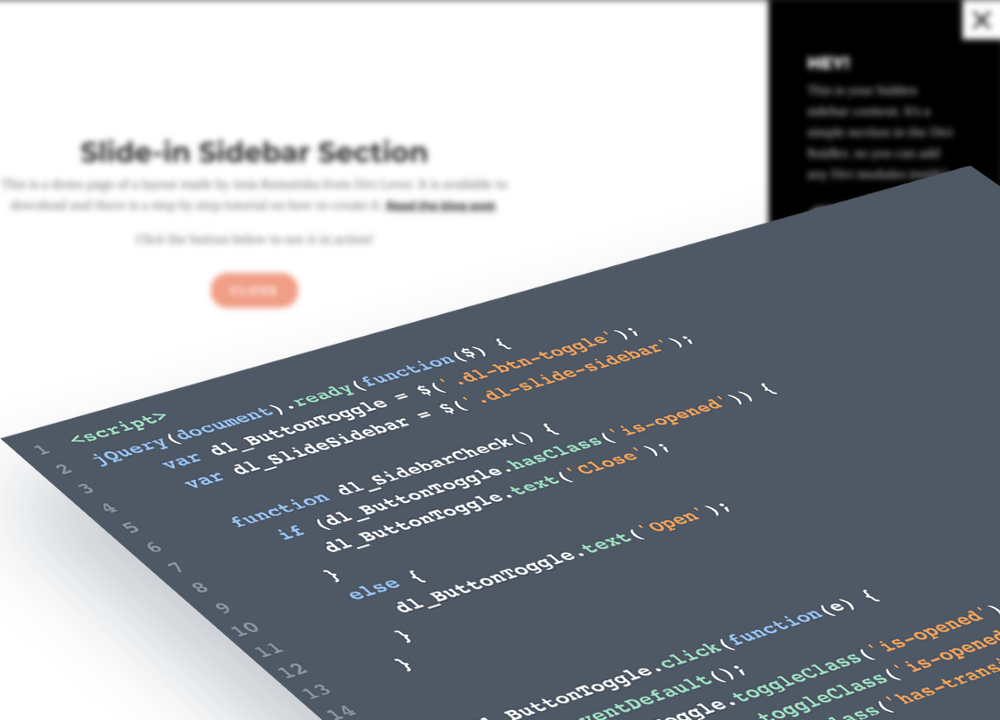
This is the final jQuery code. To understand what it does, please watch the video 😉 Add it in a Code module wrapped in <script> tags (that's how the free layout does it), or in Divi ➜ Theme Options ➜ Integration.
jQuery(document).ready(function($) {
	var dl_ButtonToggle = $('.dl-btn-toggle');
  	var dl_SlideSidebar = $('.dl-slide-sidebar');

  	function dl_SidebarCheck() {
      if (dl_ButtonToggle.hasClass('is-opened')) {
        dl_ButtonToggle.text('Close');
      }
      else {
        dl_ButtonToggle.text('Open');
      }
    }


  	dl_ButtonToggle.click(function(e) {
      e.preventDefault();
      dl_ButtonToggle.toggleClass('is-opened');
      dl_SlideSidebar.toggleClass('is-opened');
      dl_SlideSidebar.addClass('has-transition');
      dl_SidebarCheck();
    })

  	$('.dl-close').click(function() {
      $('.is-opened').removeClass('is-opened');
      dl_SidebarCheck();
    })
});
In Divi 5 the CSS class of a Button module still lands on the button link itself, so the text switch works the same way as in Divi 4.
What do you think?
Feel free to use it on your website and do not hesitate to show us the final result! We are eager to see the effects of your work!
We always appreciate your feedback, so please share your opinion with us in my Divi Lovers Facebook group!